
Apps, Websites and URL Capture
How Desktop 5.1 captures programs and website hosts, how WorkPulse stores them, and how to classify apps and websites.
Desktop 5.1
Apps, websites and URL capture
While someone is tracking, WorkPulse Desktop 5.1 records the program in the foreground and, for browsers, the website they are on. Managers can later classify those apps and sites, and view each person’s time and share of time.
How capture works
1. Capture
The desktop app notes the focused program. If it is a browser, it also notes the page title and website host.
2. Store
WorkPulse stores applications and websites separately. For websites it keeps the host only — not the full address.
3. Classify
Label each app or host as core, non-core or unproductive. That label applies to past and future time.
What is stored
Capture of time and screenshots is not blocked if usage data cannot be saved. Usage is extra context on top of the session.
| Type | What you see | What is stored |
|---|---|---|
| Application | Program name, such as a spreadsheet or chat app | The program identity used while tracking |
| Website | Page title and host, such as docs.google.com | The website host only — never the full URL with path or query |
WorkPulse does not keep the full browser address. https://example.com/secret/page?id=123 is stored as example.com. The title is shown in the workspace to help you recognise the site.
Classify apps and websites
Open Apps & websites (Settings) when the company plan includes App & website usage. Changing a label updates all time for that app or host.
- Open Apps & websites.
- Filter by Applications or Websites if you want a shorter list.
- Rename the display name if the technical name is unclear.
- Set the classification and save.
Core
Work that is expected for the role, such as the main business systems.
Non-core
Useful tools that are not the main job, such as a browser used for mixed tasks.
Unproductive
Sites or programs you treat as not part of work.
Unclassified
Anything not labelled yet. New apps and hosts start here.
View a person’s usage
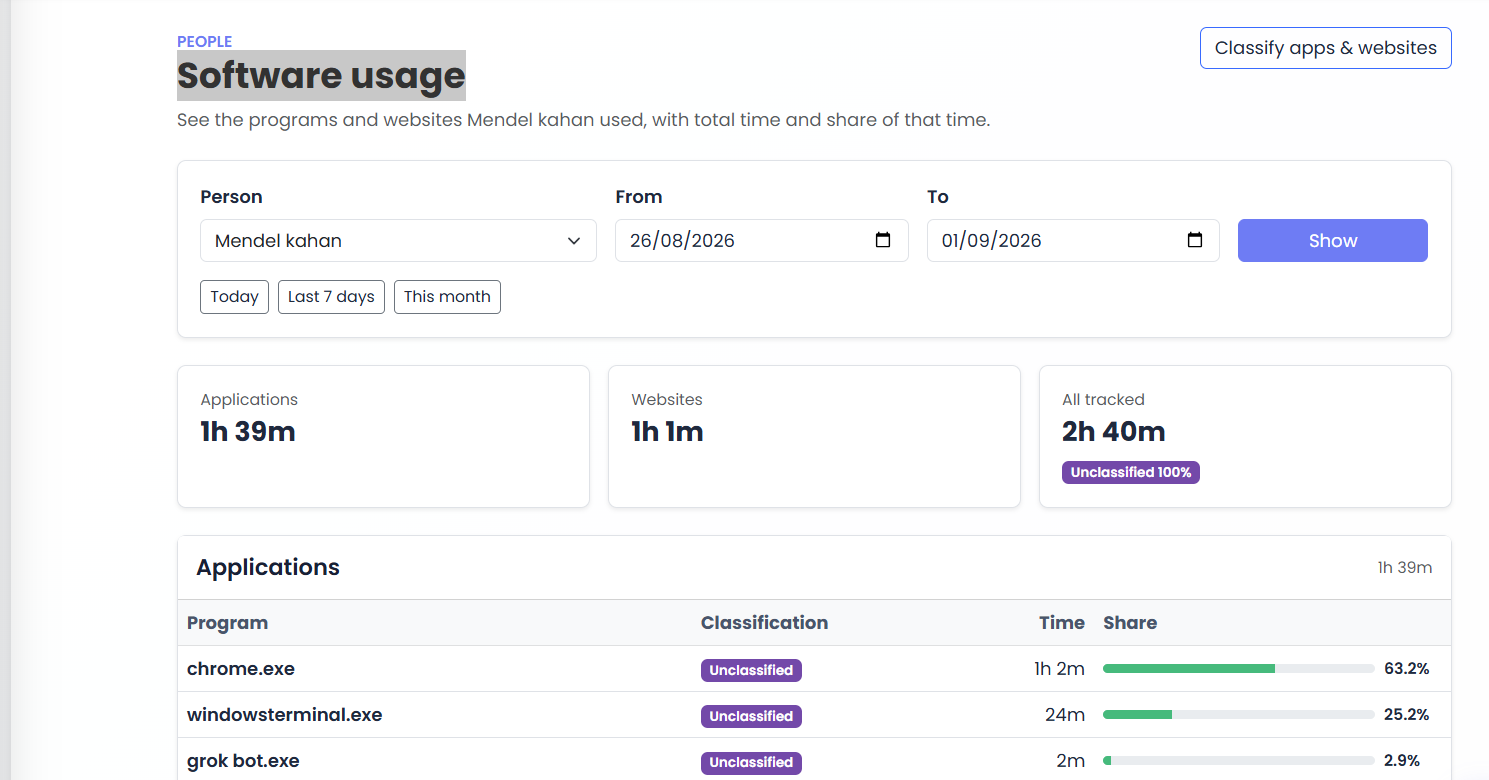
Open Software usage to see one person’s programs and websites, with total time and share of that time. Applications and websites stay in separate lists.
- Choose the person.
- Choose a date range, or use Today, Last 7 days or This month.
- Review totals, then the application list and the website list.
- Use Classify apps & websites if a label needs to change.
Who you can open follows Time Worked visibility: yourself, people you lead, or everyone if you can view all captures.
On the dashboard
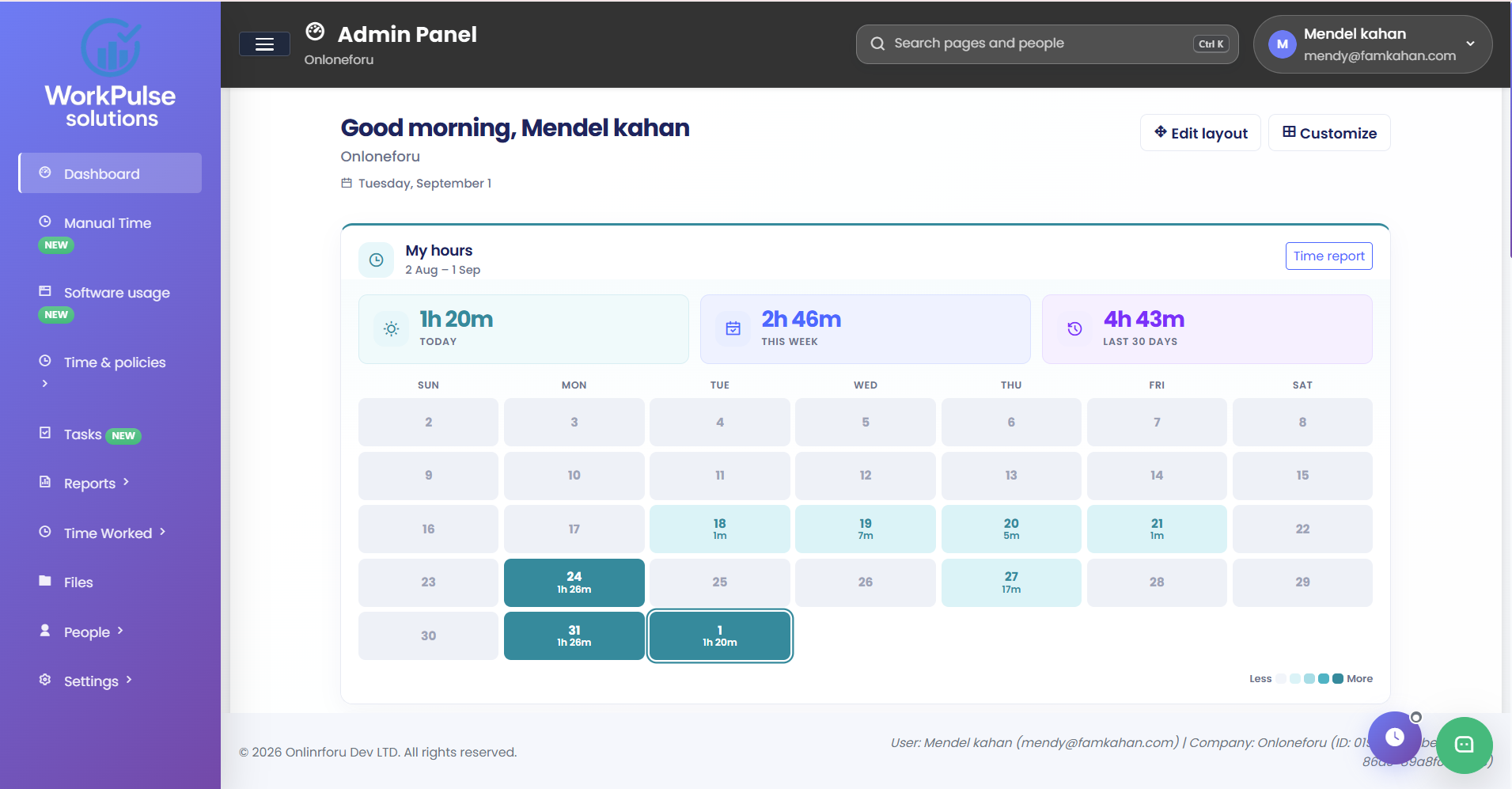
When the plan includes App & website usage, you can add widgets for apps and URLs, and for the most and least active people today. Arrange the dashboard, then save the layout.
Plan access
- Desktop capture of programs and website hosts is always recorded with the session. It does not depend on the usage feature.
- Classifying apps and websites, and opening Software usage, need the App & website usage plan feature.
- Use Desktop 5.1 or newer for focused-tab website hosts. Older installers do not send website hosts.
- Confirm the person was tracking on Desktop 5.1 during the date range.
- Confirm App & website usage is on the company plan if you cannot open Software usage or Apps & websites.
- Websites appear by host. Several pages on the same site add up to one host.
- Unclassified items still count in time totals until you label them.
Was this article helpful?