
Client onboarding and billing: step-by-step guide
Follow a client enquiry through company details, agreed worker prices, approval, account activation and ongoing billing.
Follow a client from their first enquiry to agreed prices, account setup and ongoing staffing invoices.
Before starting: your company needs the Wholesaler feature and the role permissions for each action. Activation checks the normal user allowance. Enquiries and proposal drafts do not create teams, user accounts or reserved seats. Client billing prices are separate from employee payroll wages.
The four onboarding stages: Application → Proposal and pricing → Client approval → Activation. Application contains the contact/company and hiring-requirements sections. After activation, manage workers, billing periods and invoices from the client workspace.
The illustrations use fictional companies, contacts, dates and prices. Northbridge Demo Ltd shows a new signup; Full run demo 25 October illustrates ongoing billing and ending an arrangement. Select an illustration to open the full-size image.
1. Check your staffing company's invoice details
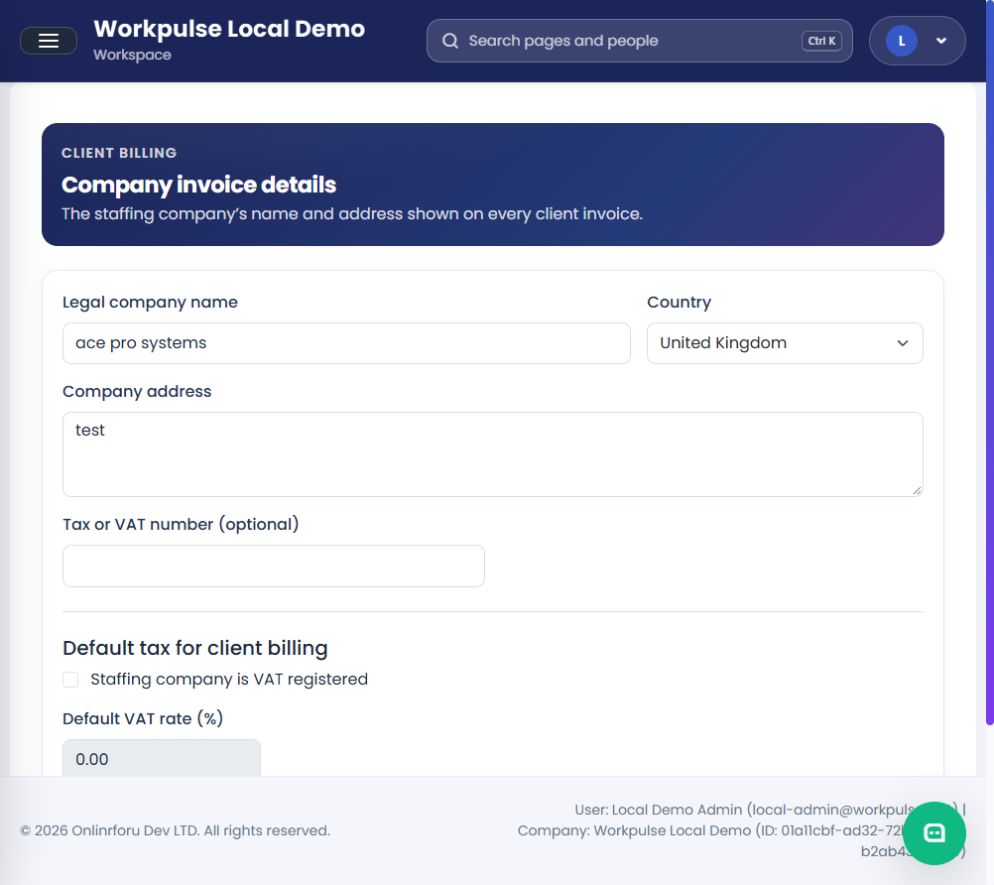
In Client billing, open Company invoice details. Save the staffing company's legal name, invoice address and country. Set its VAT-registration status and default rate as appropriate for the company.
Expected: these are your shared supplier details. Each client also has their own company details. Changing a default does not rewrite existing approved prices or invoices; check the tax shown in each new proposal.
2. Start a company enquiry
Open Client billing → Clients, then New client company. Use the search box to return to an existing enquiry.
Expected: new enquiries are kept separate from operational teams. Recording an enquiry does not create a team, login, account invitation or reserved user seat.
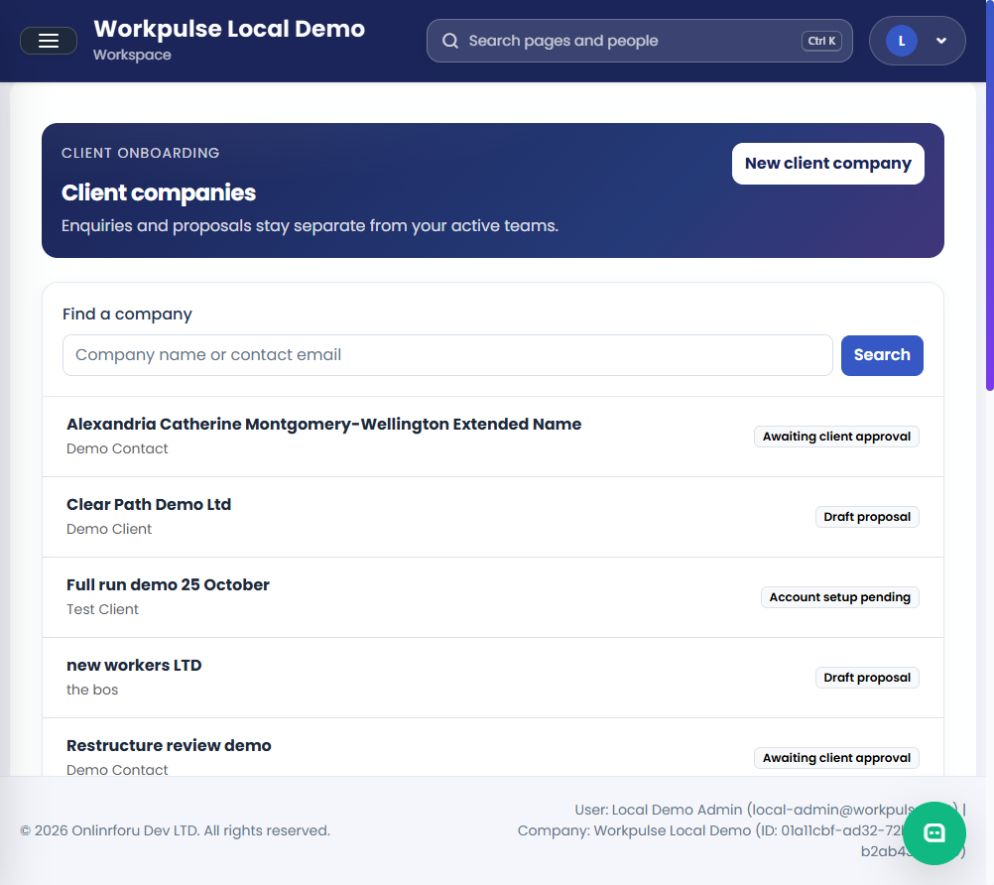
There are two ways to collect an enquiry:
- Staff entry: complete the form on this page for the client.
- Client entry: expand Share your enquiry form and share its public form link. The client can complete it without an account. A website can link to this form; a separate custom-form API is not provided at this stage.
Share the enquiry link from your live Workpulse website so clients can open it from their own devices.
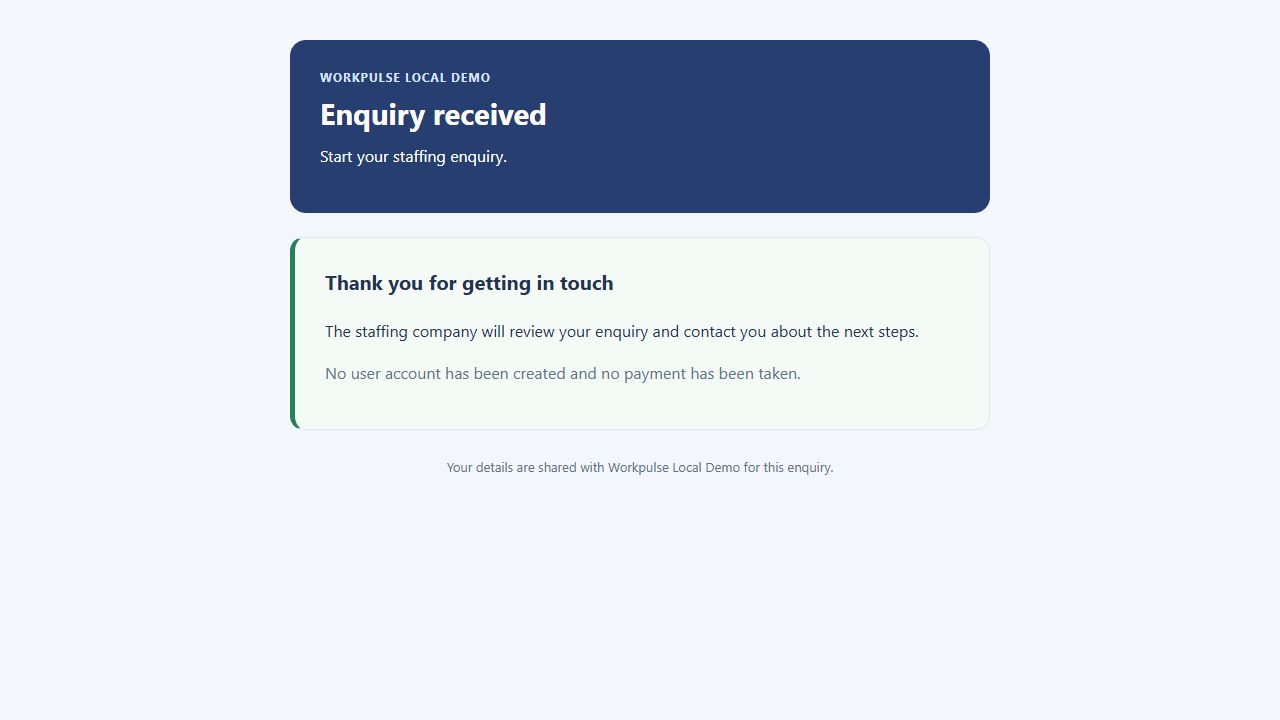
After the client submits the public form, they see a receipt. The staffing administrator finds a new Company enquiry in Clients. No team or user is created by this submission.
3. Complete both Application sections
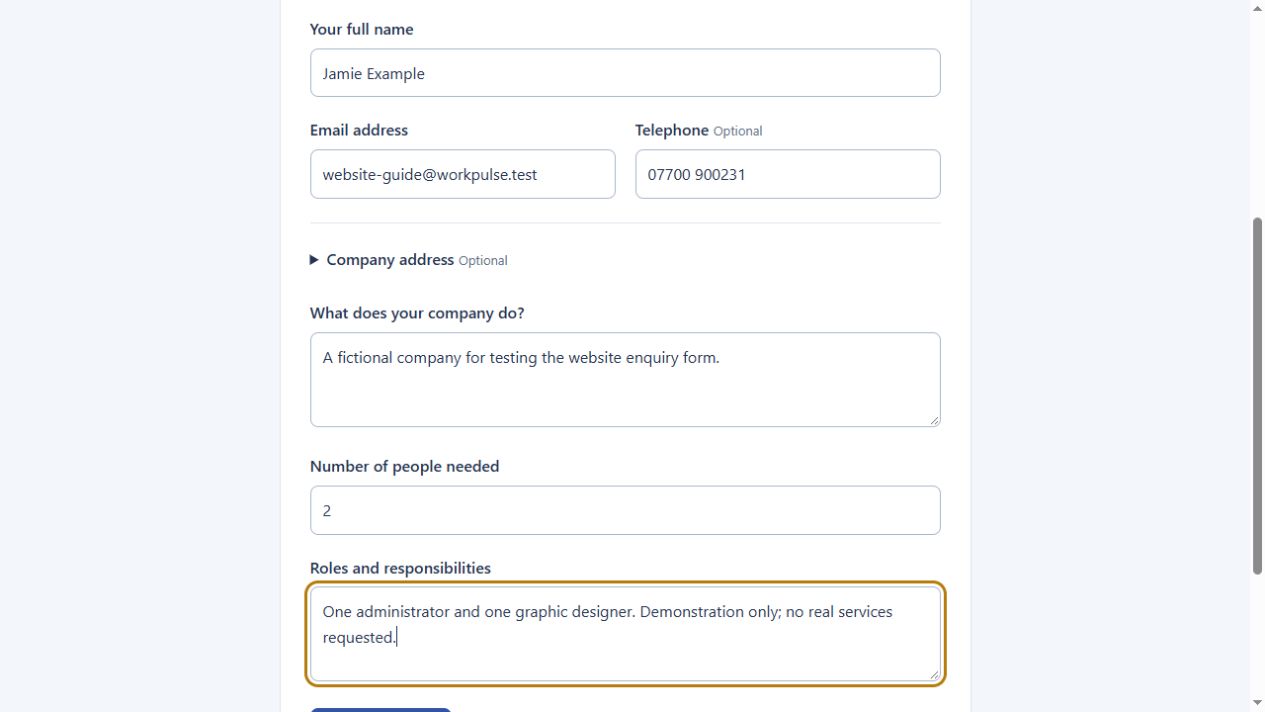
In Contact and company details, enter the company name, contact name, email and telephone. Add the company/invoice address, country and relevant invoice preferences. The main contact will later receive the proposal and account invitation.
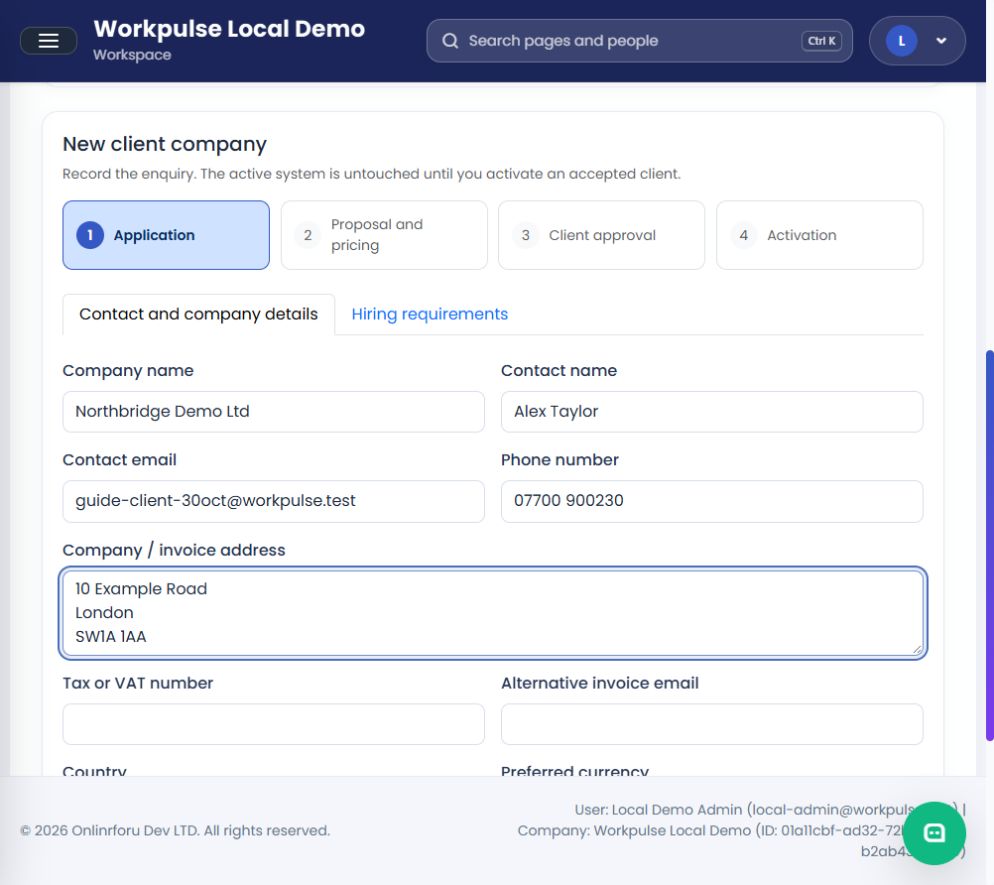
Switch to Hiring requirements. Record what the company does, how many people it needs, and the work required. Include duties, skills, hours and desired start dates in the description.
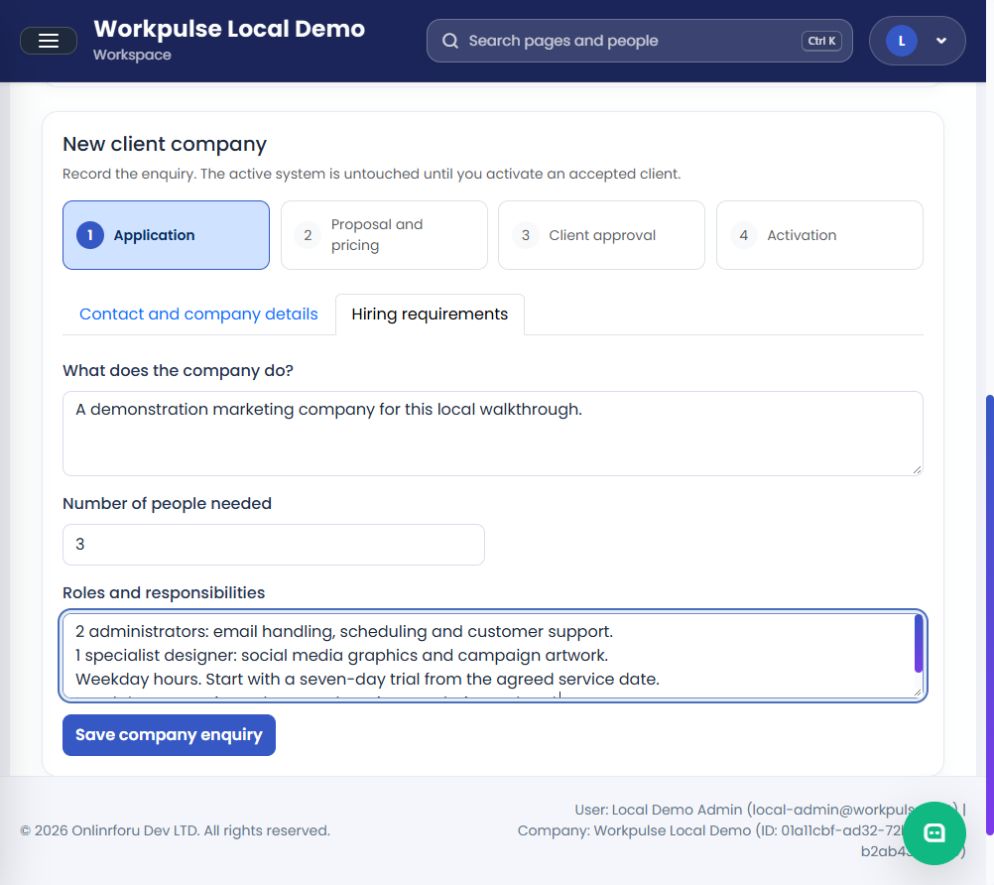
Select Save company enquiry. On an existing enquiry, each Application subsection has its own save button.
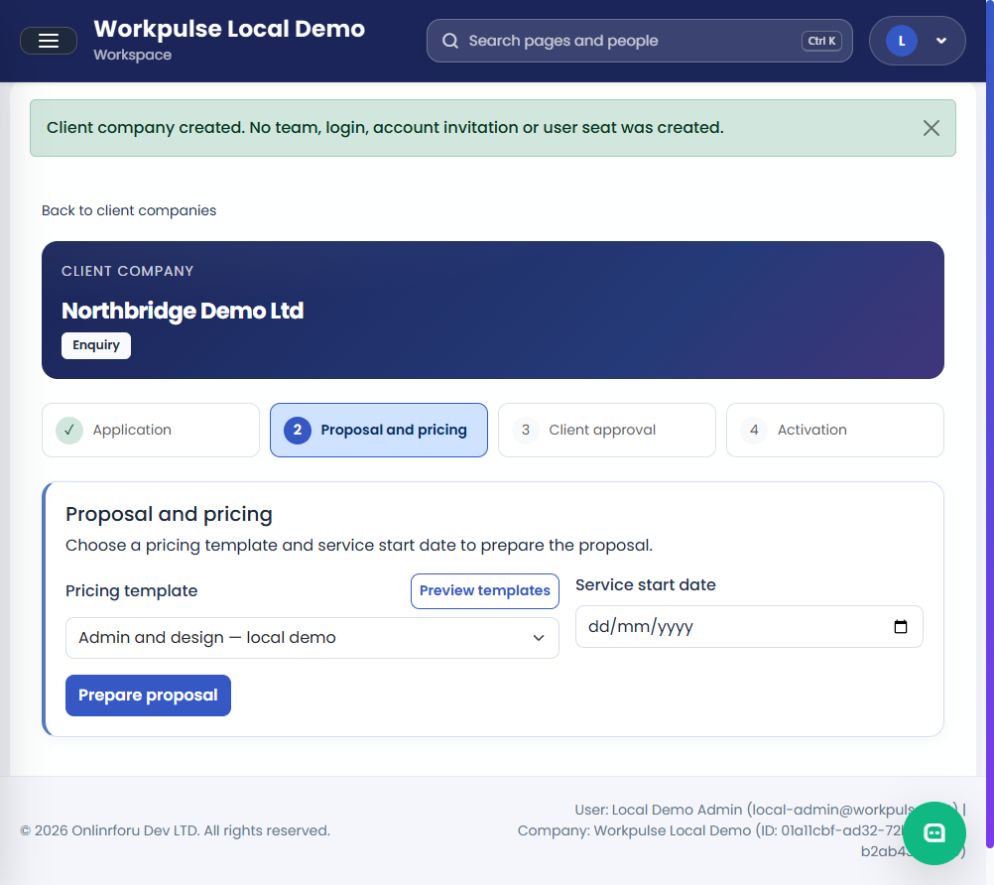
Expected: the company opens with Application complete when its address, headcount and hiring requirements are present. The next stage is Proposal and pricing. No team or user has been created.
4. Choose or create reusable pricing
Open Pricing templates. Select Create a template to open the popup, or reuse a saved template.
For the usual monthly staffing arrangement, choose For each employee, the currency and Every month. You can either Set a default price or Set the price in each proposal.
Expected: a default is a starting point. You do not need a new template for every specialist or worker whose client price differs. Actual client prices are set in the proposal.
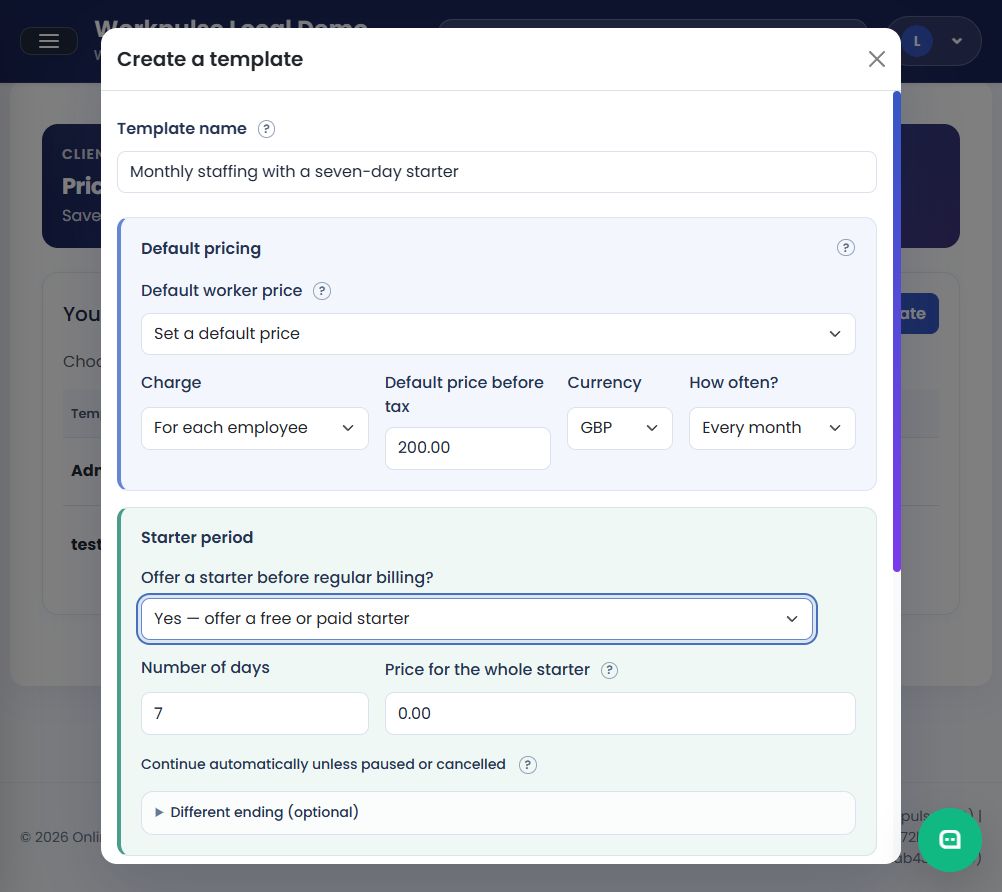
If offering a starter, choose Yes — offer a free or paid starter, enter its length and price. The example uses seven days at zero. The normal ending is Continue automatically unless paused or cancelled. Open Different ending (optional) only when a separate continuation approval or starter-only arrangement is needed.
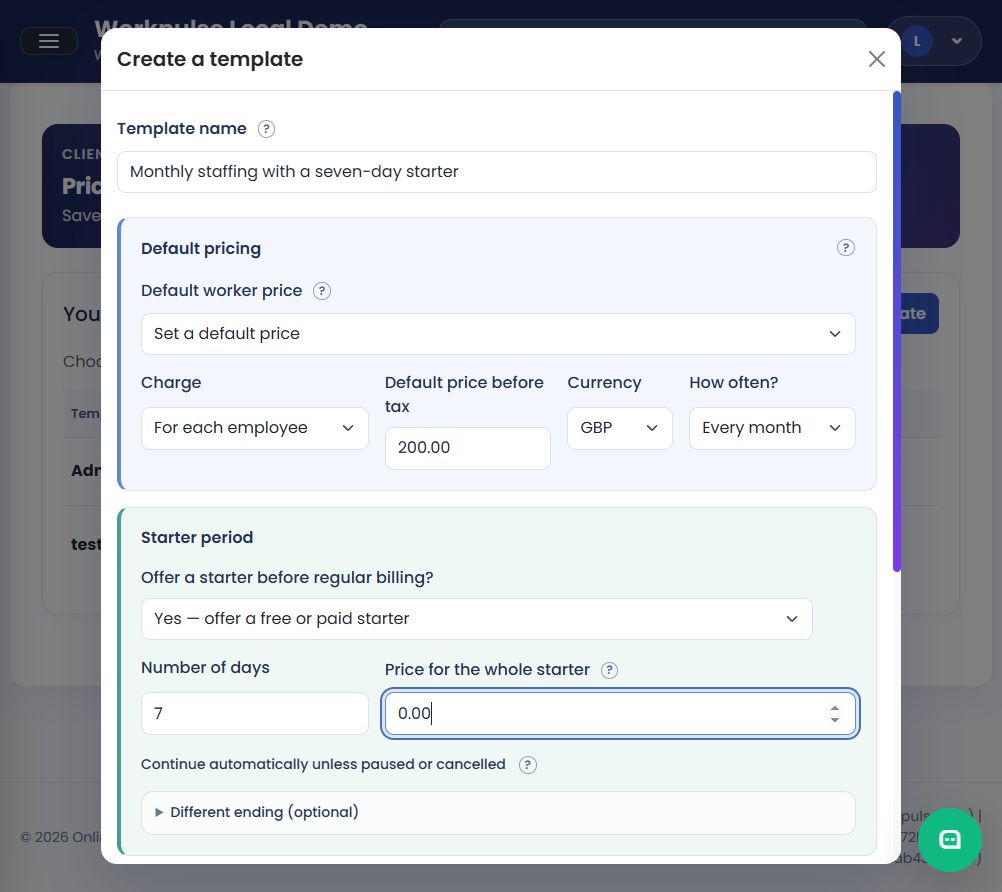
Save the template. Other supported approaches are a fixed client price or a price per paid hour. Hourly billing uses approved worked hours plus paid breaks; unpaid breaks and leave are excluded, and invoices are reviewed after the period ends.
5. Prepare the client's proposal
Return to the company and open Proposal and pricing. Select a template and the agreed Service start date, then Prepare proposal. Preview templates shows the saved settings before you choose.
Expected: a draft opens for this company. Preparing it sends nothing and does not create a team or reserve a user seat.
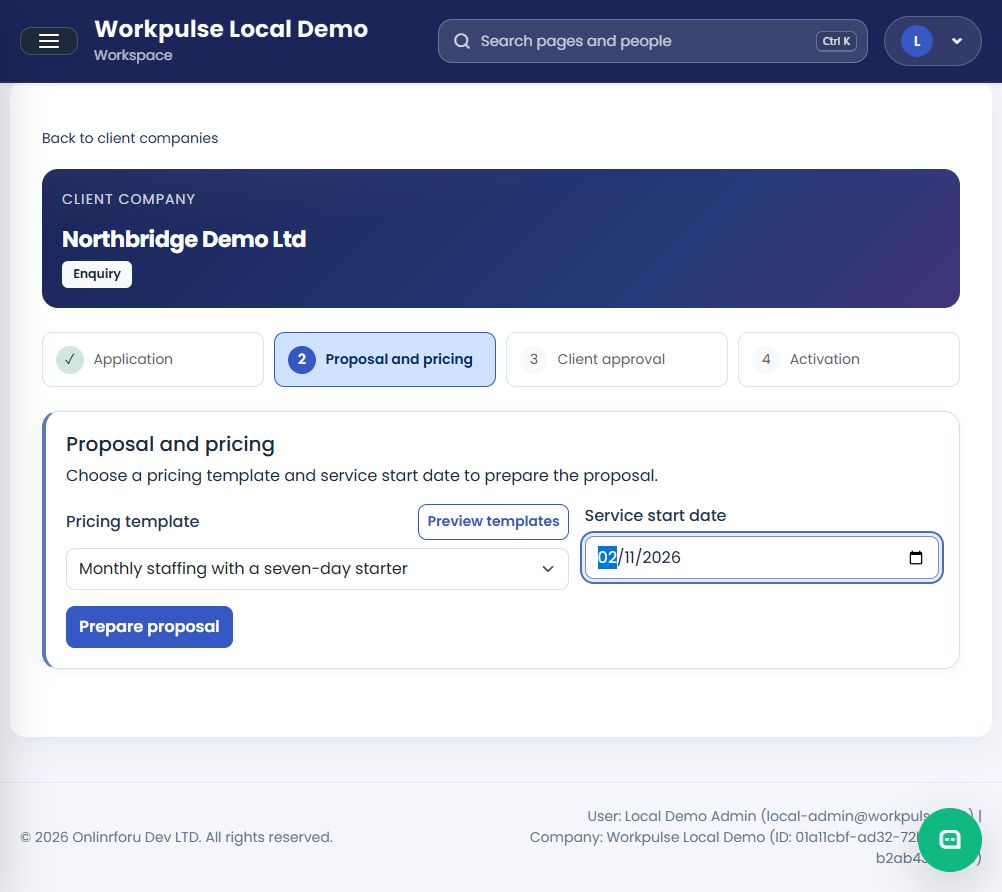
The starter follows the service date, rather than the date the email was sent. A seven-day starter beginning on 2 November covers 2–8 November; regular service begins on 9 November.
6. Enter the actual client prices
Under Set this client's prices, either keep one common client price or enable Set individual worker prices. Use a worker's name or a clear description; their user account is not needed yet. Workers sharing a price can share a row.
For Northbridge, the three agreed prices are GBP 200 + GBP 200 + GBP 500 = GBP 900 per month before tax. Each starter price is zero. Keep all rows in the same currency and ensure the quantities match the Application headcount.
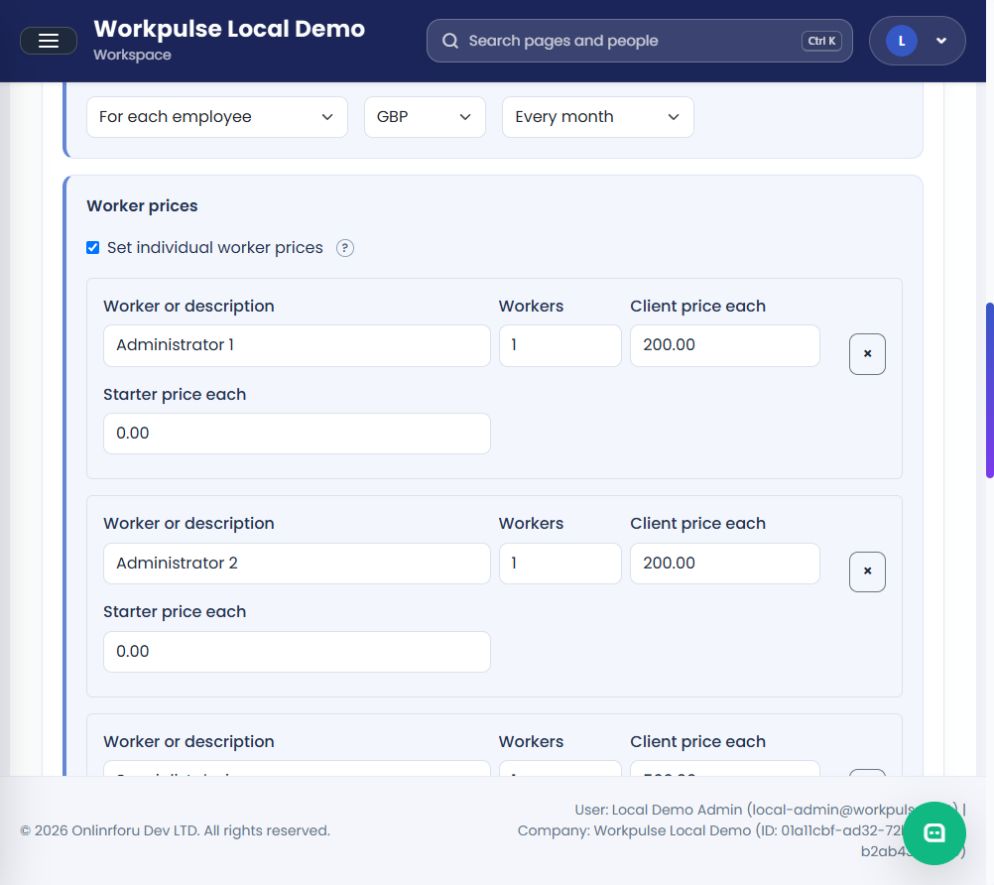
Review the service date, starter, tax, invoice timing and any setup fee, then select Save draft terms.
Expected: these changes affect this proposal only. The reusable template stays unchanged. An unset price blocks sending; an explicitly entered zero is a free price. These are the prices charged to the client, separately from employee wages.
In When the client approves, choose whether an administrator activates the client or activation happens automatically after approval. Automatic activation requires an appropriate client role and available user allowance. Save this choice before sending.
7. Attach documents and send the proposal
Attach optional contract PDFs, then find Send proposal to the client. The saved contact name and email are already filled in. Use Change recipient only if this invitation should go elsewhere; it does not change the saved company contact.
Select Send proposal email. More options and help includes link-only creation if you want to share the proposal yourself.
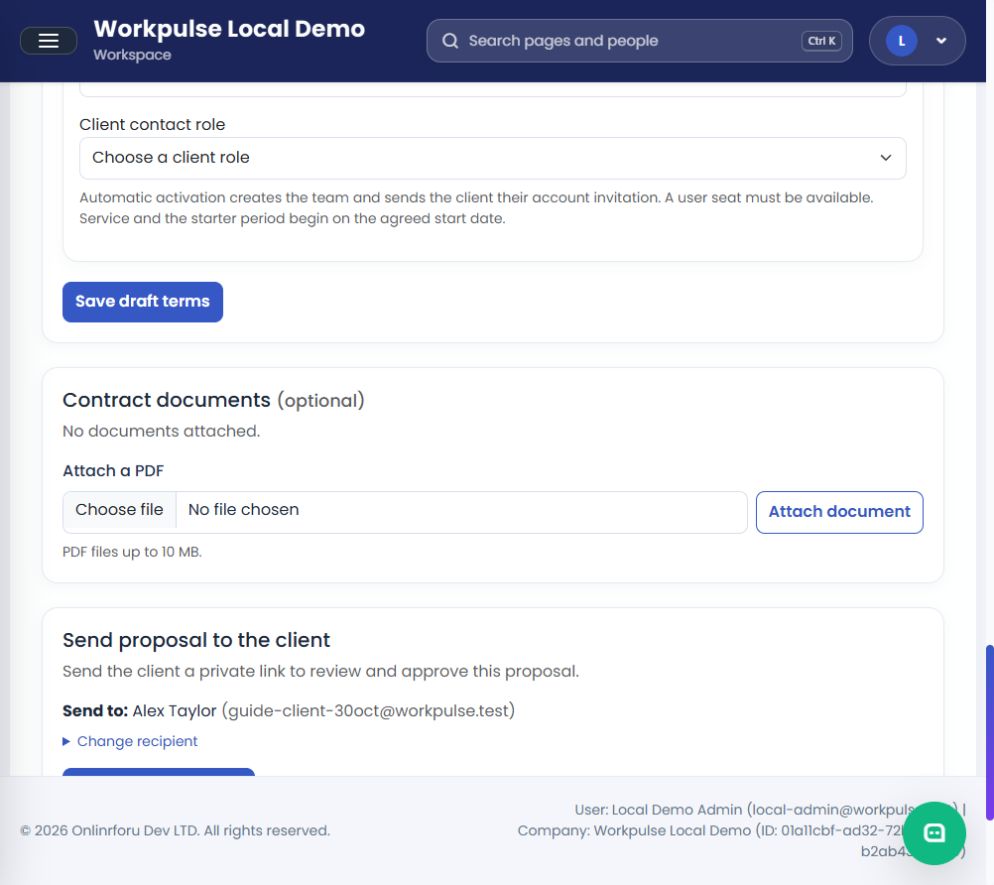
Expected: the company moves to Awaiting client approval. The invitation shows whether its email was sent. Creating or resending a link replaces the previous one; links expire after seven days.
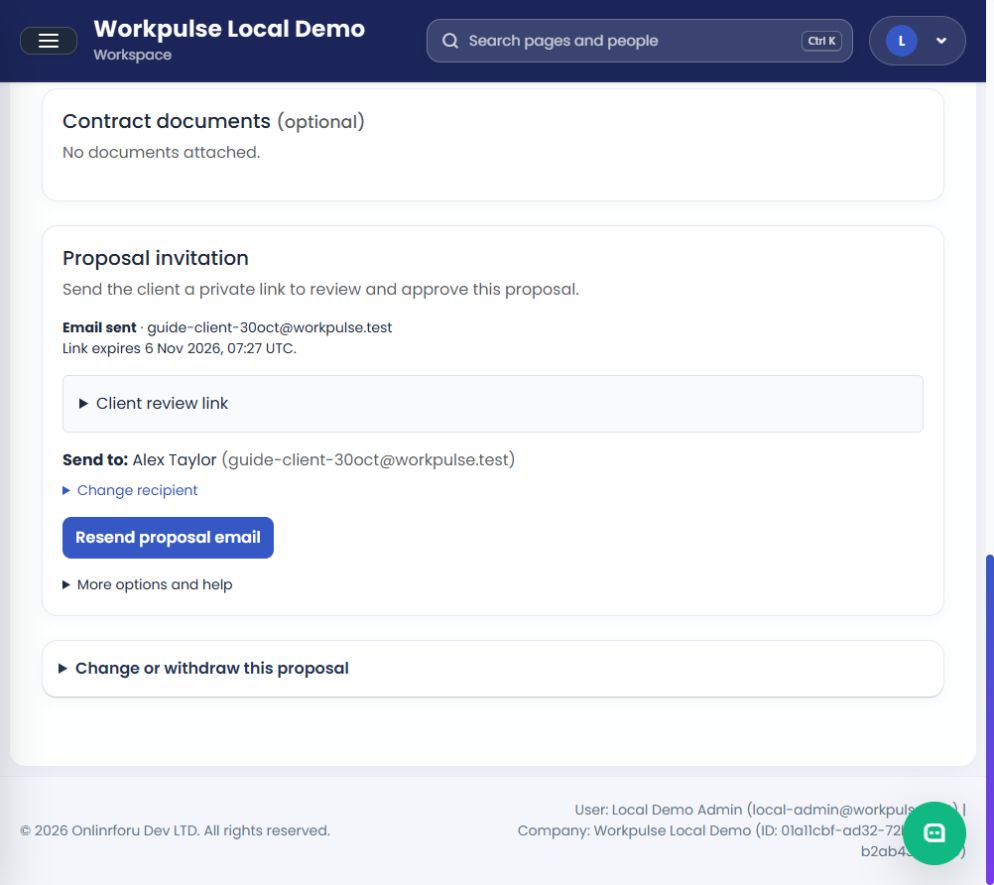
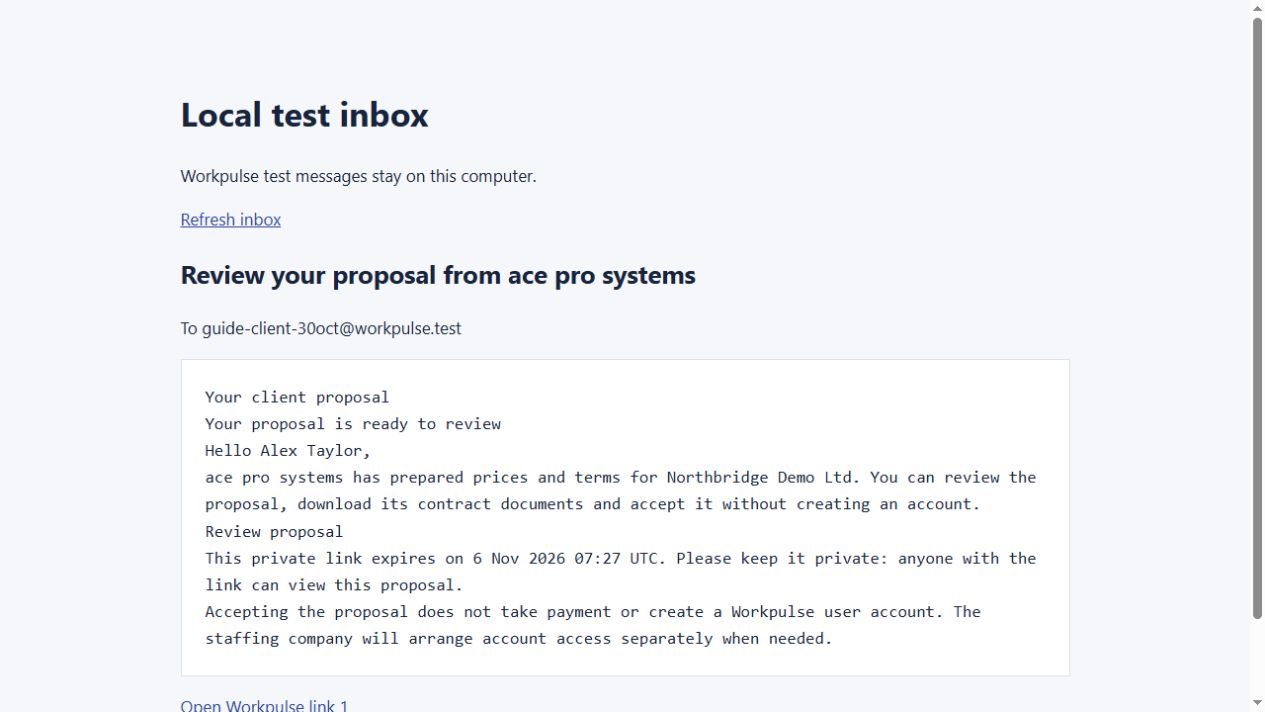
Email delivery: the illustration shows a local demonstration inbox. Your installation needs working outgoing email for proposal invitations and verification codes to reach clients.
To change a sent proposal, use Change or withdraw this proposal → Revise proposal. This creates a new draft and withdraws the earlier review link. Discarding an unaccepted proposal also preserves its history.
8. Client review, email verification and approval
The client opens the proposal email and selects Review proposal. They review company details, the service date, worker prices and documents without signing in.
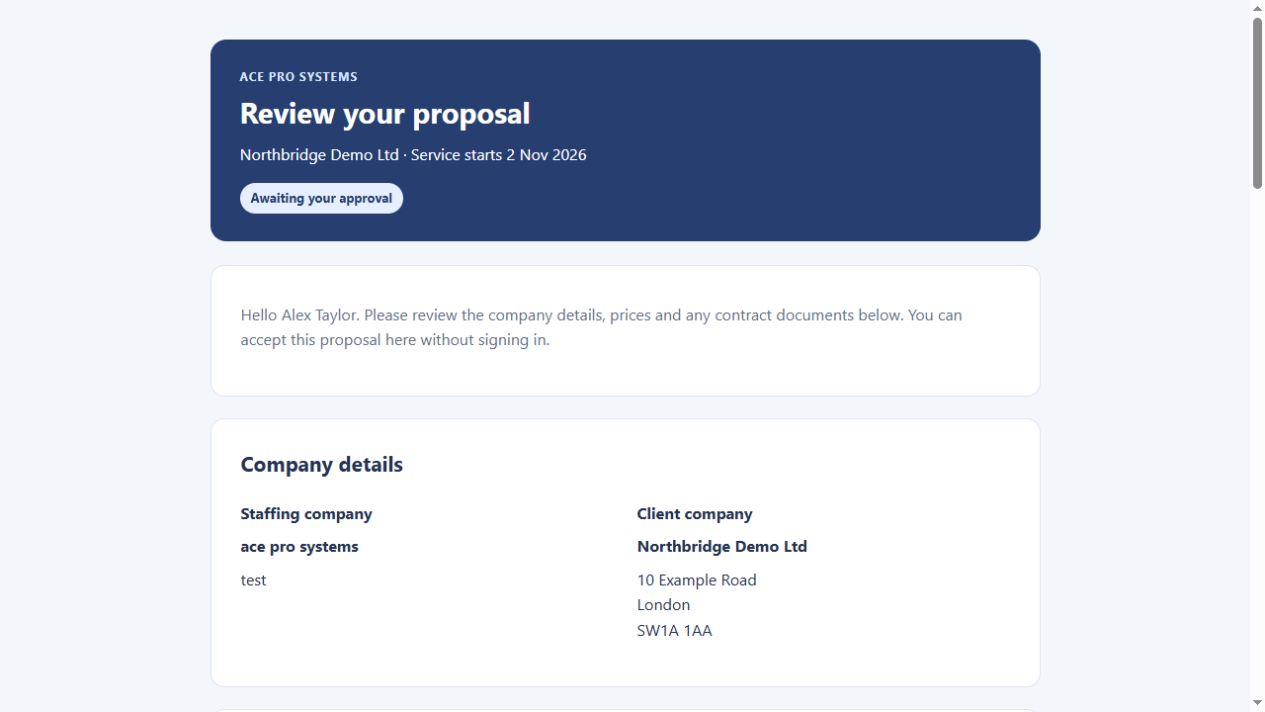
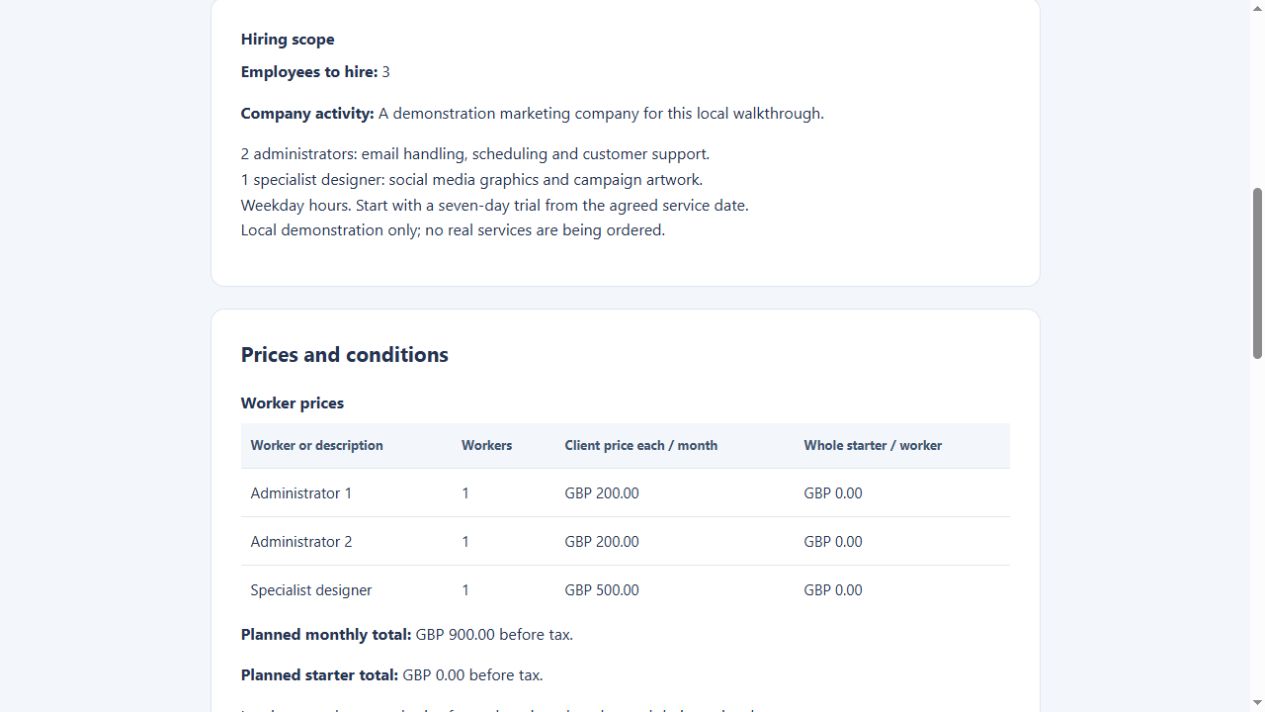
The client selects Send verification code, reads the code in their email, enters it, confirms their name and authority, then selects Accept proposal. A code expires after ten minutes; request a new one if necessary. Never share verification codes or private proposal links publicly.
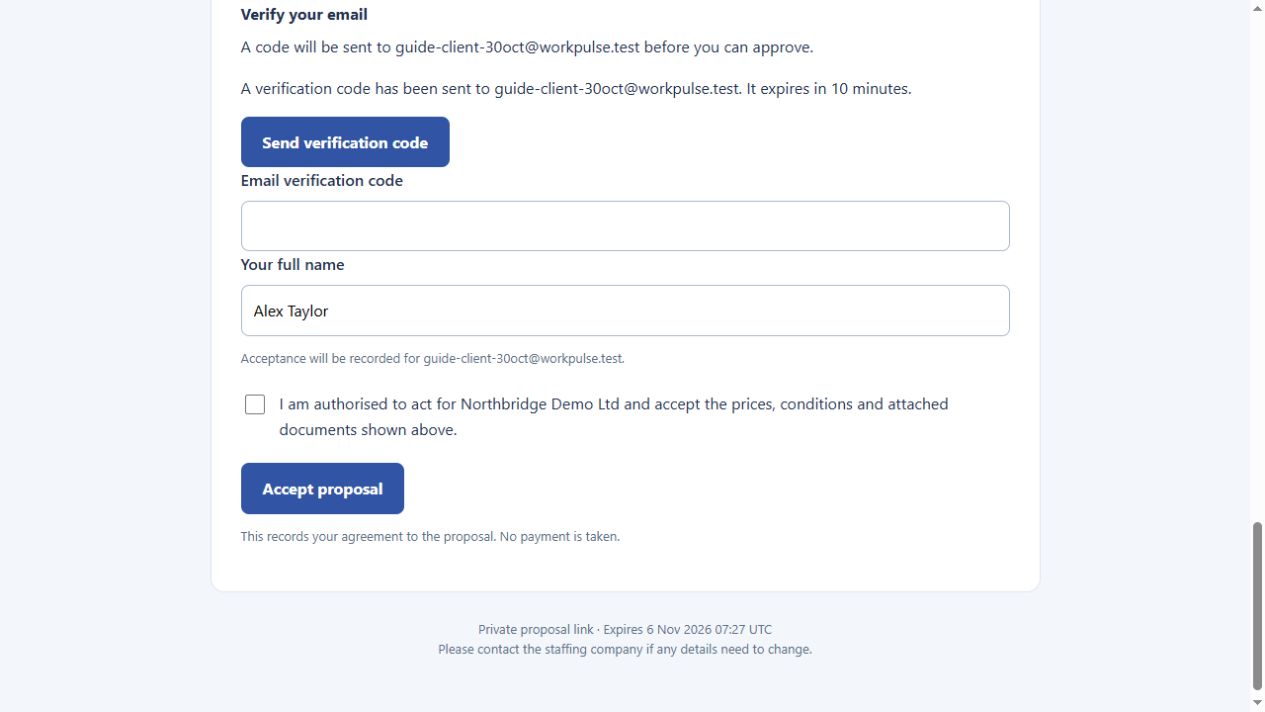
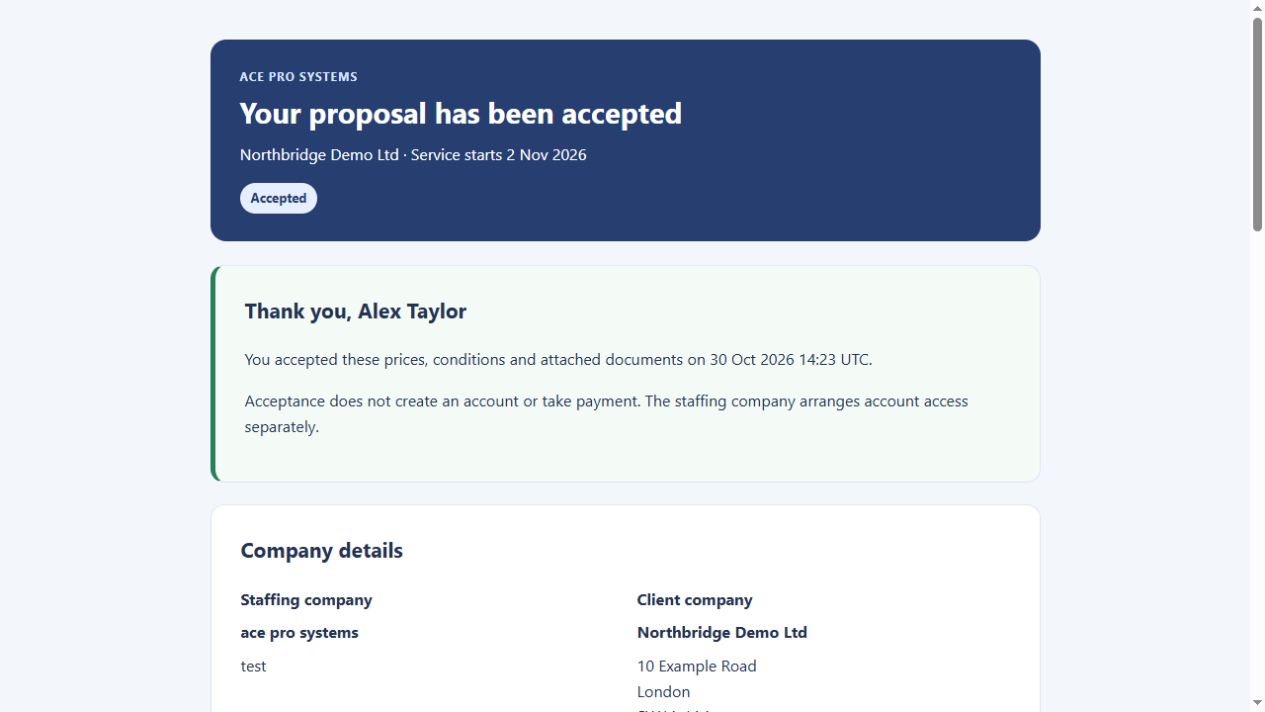
Expected after acceptance: the approved prices and documents are recorded. Approval does not charge a card. With manual activation, the company becomes ready for activation; with automatic activation selected, team/account-invitation setup is attempted using the saved policy and normal allowance checks.
Example: Northbridge's accepted receipt preserves the agreed prices and service date. No payment is taken by this action.
9. Activate the approved company
For manual activation, open the company's Activation stage. Choose the client contact's role, confirm, and select Activate client and invite contact. The administrator does not enter the client's password.
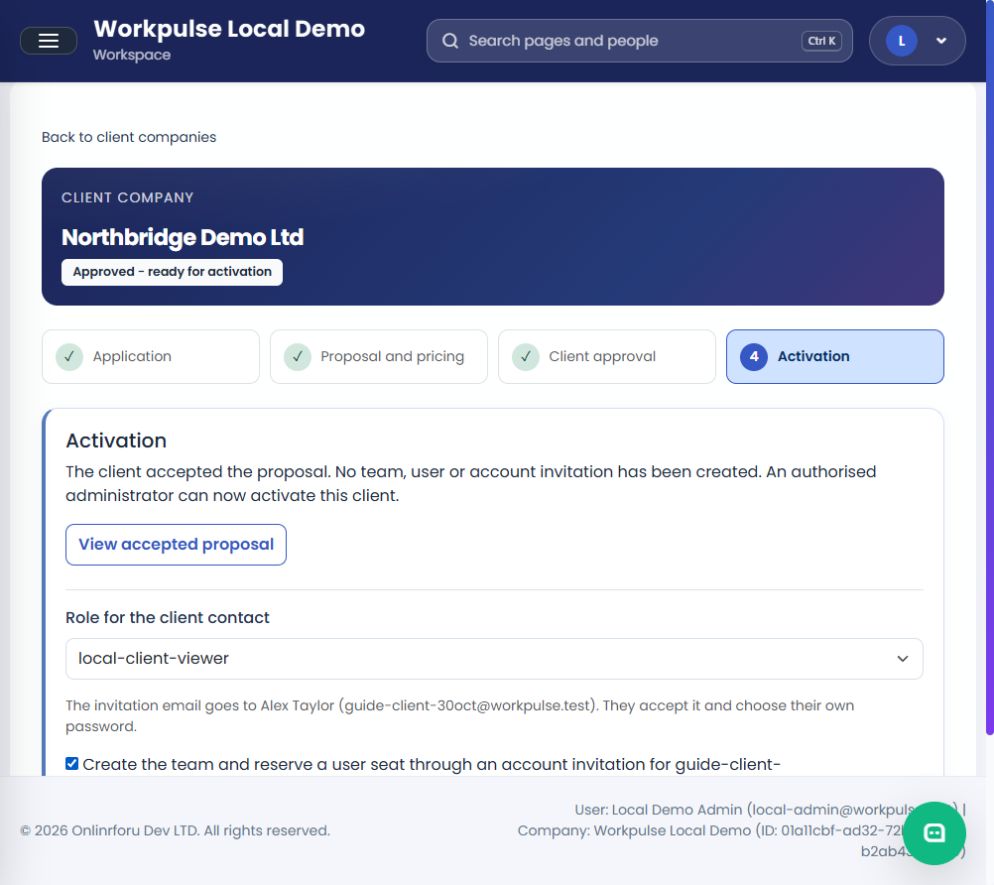
Expected: activation creates the linked operational team and accepted billing arrangement. For a new contact, its pending invitation reserves a user seat. If the allowance is full, resolve it before retrying. A suitable existing verified account can be explicitly reused without reserving another seat.
If automatic activation needs attention, approval remains recorded. Review the allowance, role and setup message, then use the activation recovery controls. Do not create a duplicate enquiry or contact just to retry.
Expected after activation: the company shows Account setup pending, with the invitation recipient and last-sent date. Pending invitations reserve seats. Review them from People → Pending invitations when checking capacity.
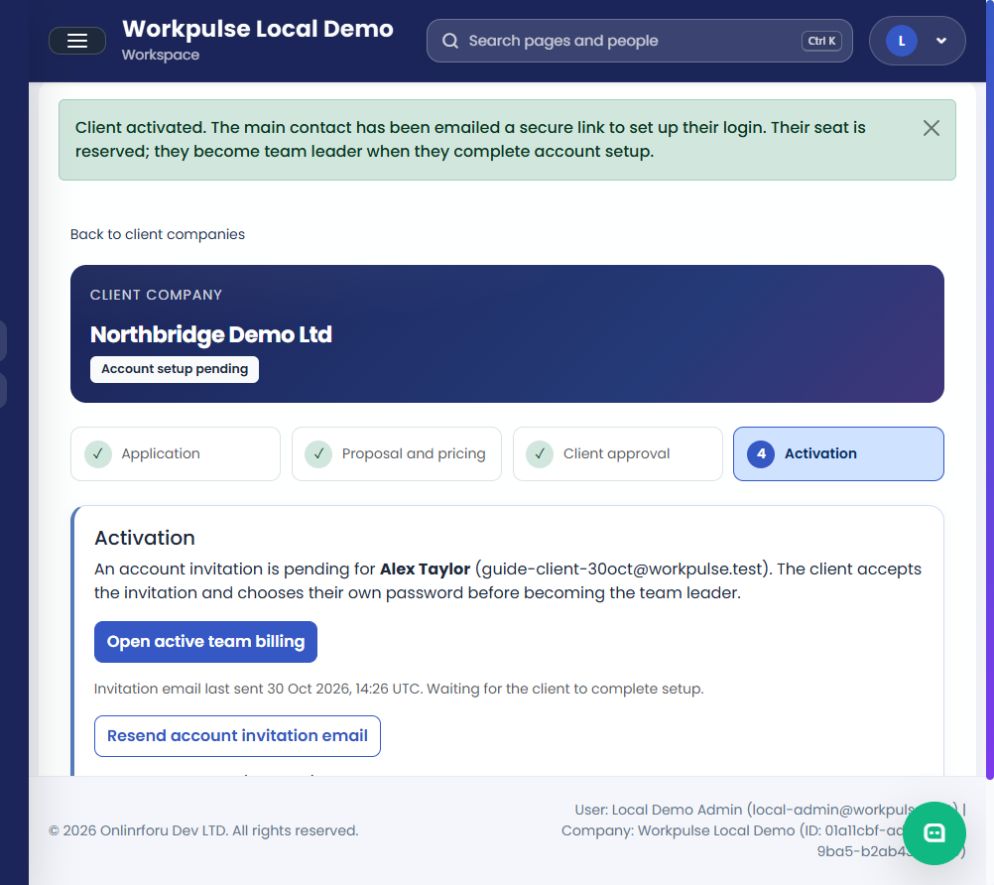
Use Send account invitation email or Resend account invitation email as shown when delivery is needed. The fallback setup link is for private sharing only.
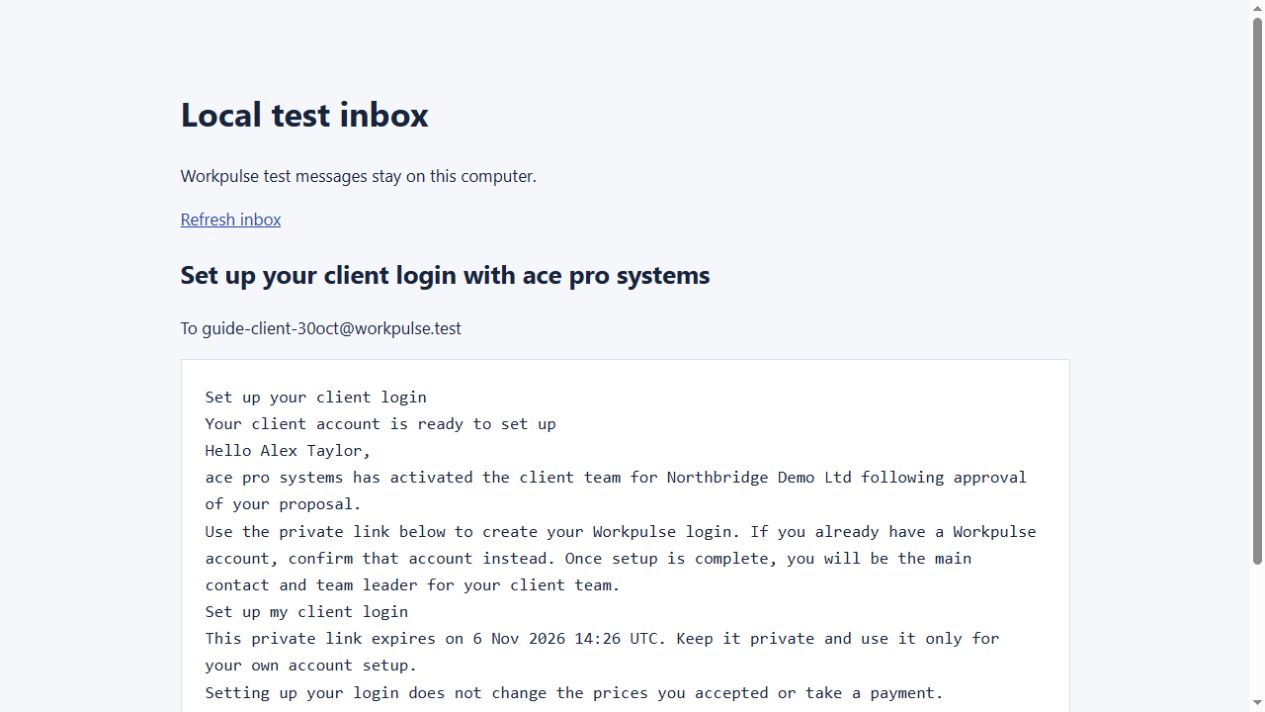
10. The contact creates their own login
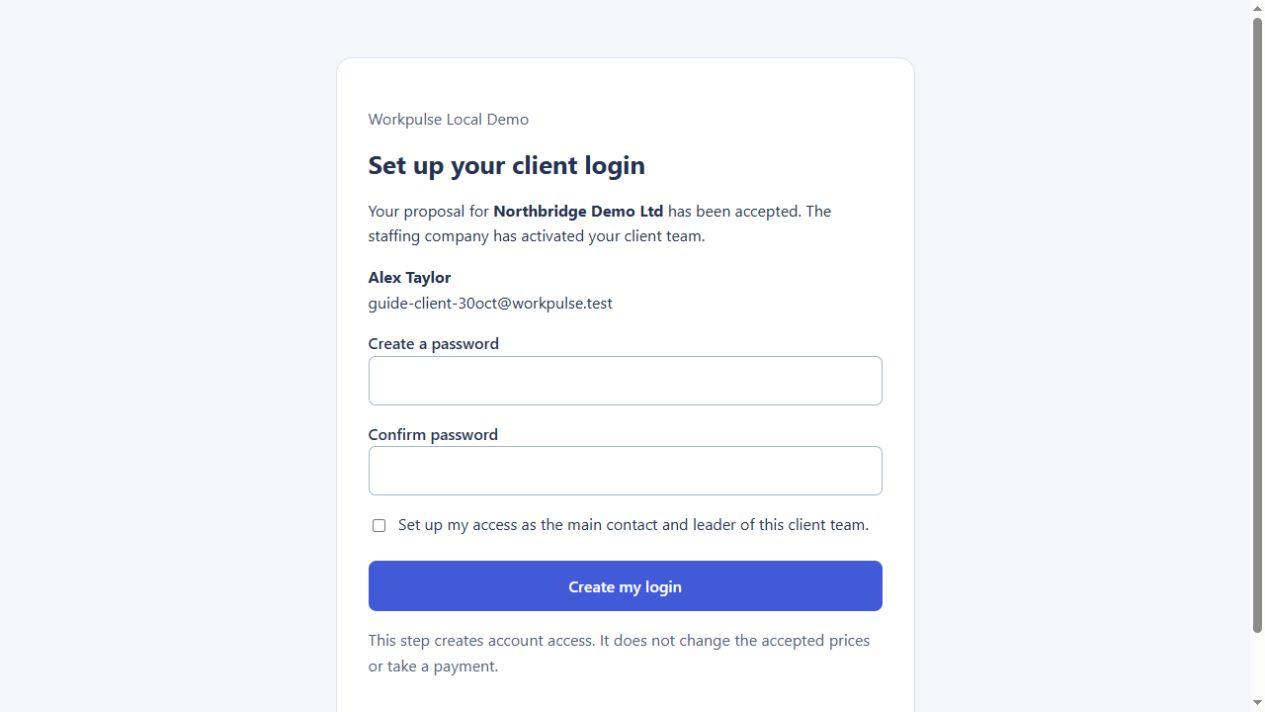
The client follows their account invitation, creates and confirms their own password, confirms their access and selects Create my login. Their name and email are already supplied. An existing account uses its existing sign-in/confirmation instead.
Expected: the contact gains their client role and becomes that team's leader. The reserved invitation becomes the completed account; this does not change approved prices or take payment. Access to company billing, wages and other areas still follows the assigned role and team permissions.
11. Open the active team's billing
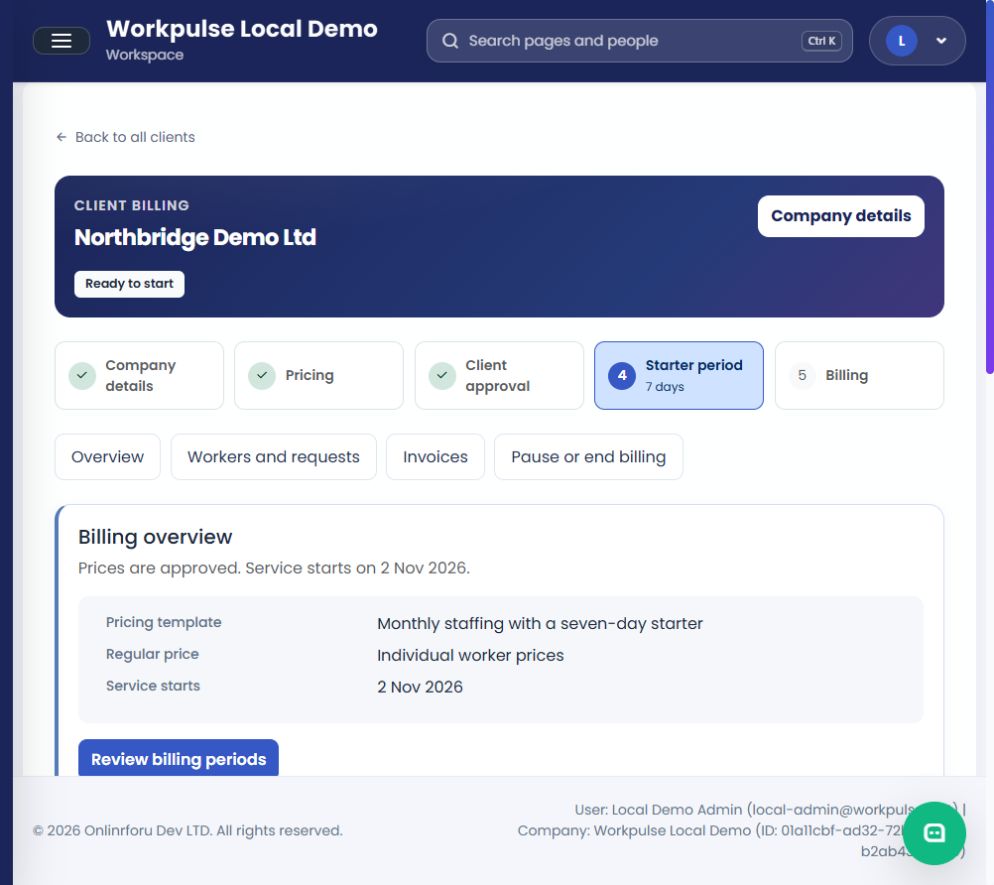
On the company, select Open active team billing. Use Overview, Workers and requests, Invoices, and Pause or end billing to manage this client.
The operational page follows the agreed service dates. Northbridge shows Ready to start on 2 November, with its seven-day starter covering 2–8 November and regular pricing from 9 November. Its three agreed worker prices remain GBP 200, GBP 200 and GBP 500 per month before tax.
12. Assign workers and manage staffing changes
The worker, invoice and ending illustrations below use Full run demo 25 October, an older fictional client. The same controls apply to Northbridge once its workers are ready.
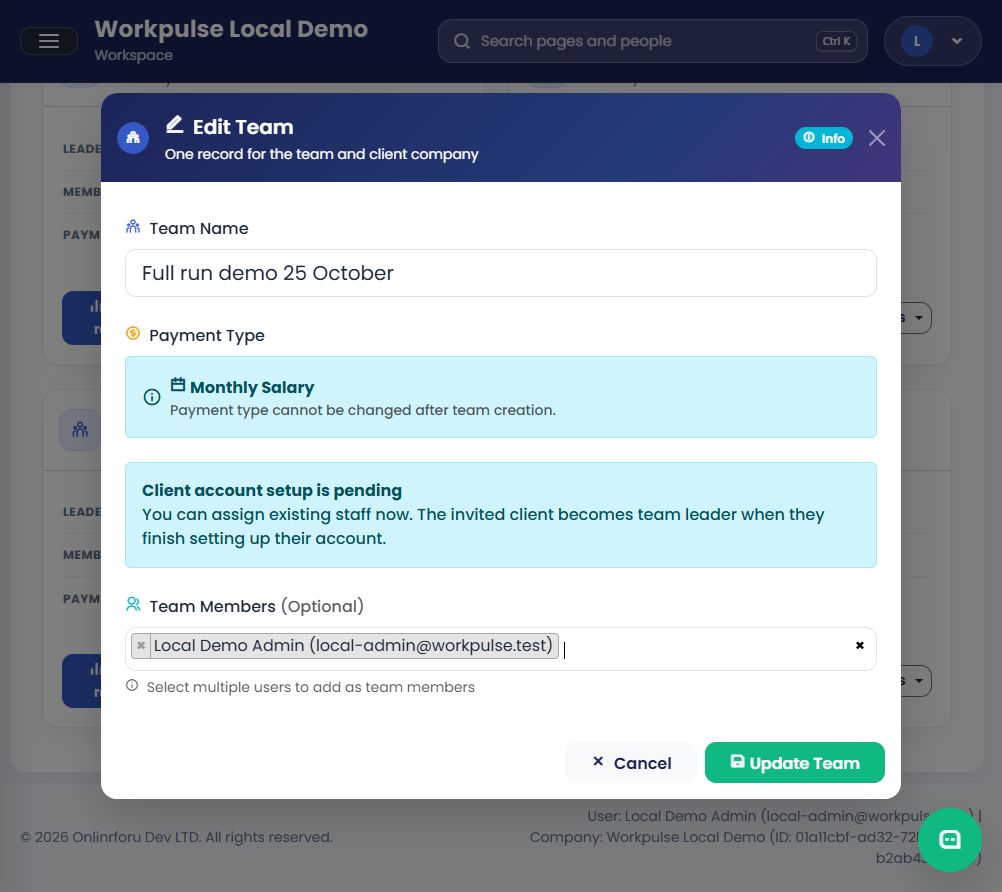
Use People → Team setup → Actions → Edit team to manage actual team membership. New enquiries and proposals begin in Client billing → Clients. If the invited client has not finished account setup, the form says Client account setup is pending: staff can still add existing workers, and the invited client becomes leader after setting up their own account. No temporary leader is needed.
In the client's billing page, find Assigned workers → Add a worker. Select the person, their agreed worker price where applicable, and Start charging from. Save with Add worker. The person must already belong to this team as a worker.
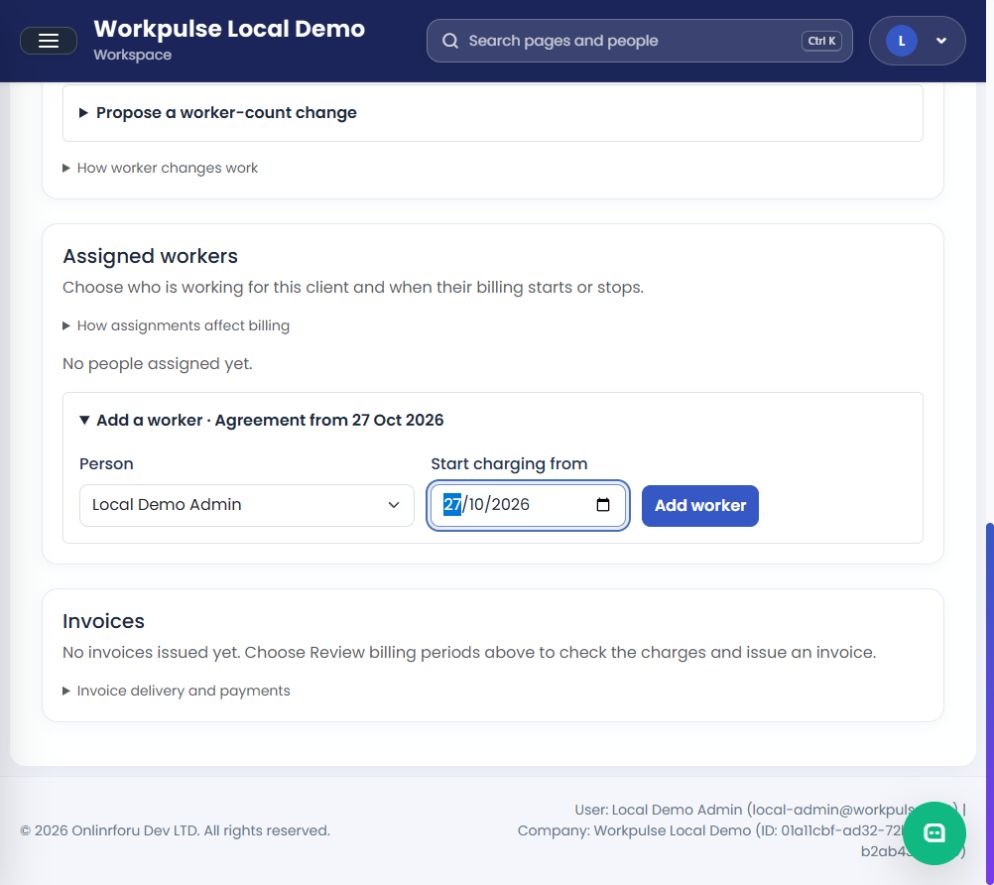
To stop charging for one worker, open End assignment, choose the first day you will no longer charge for, and save. This changes their billing assignment; it does not remove their team membership or change payroll. Dates overlapping issued invoices are protected.
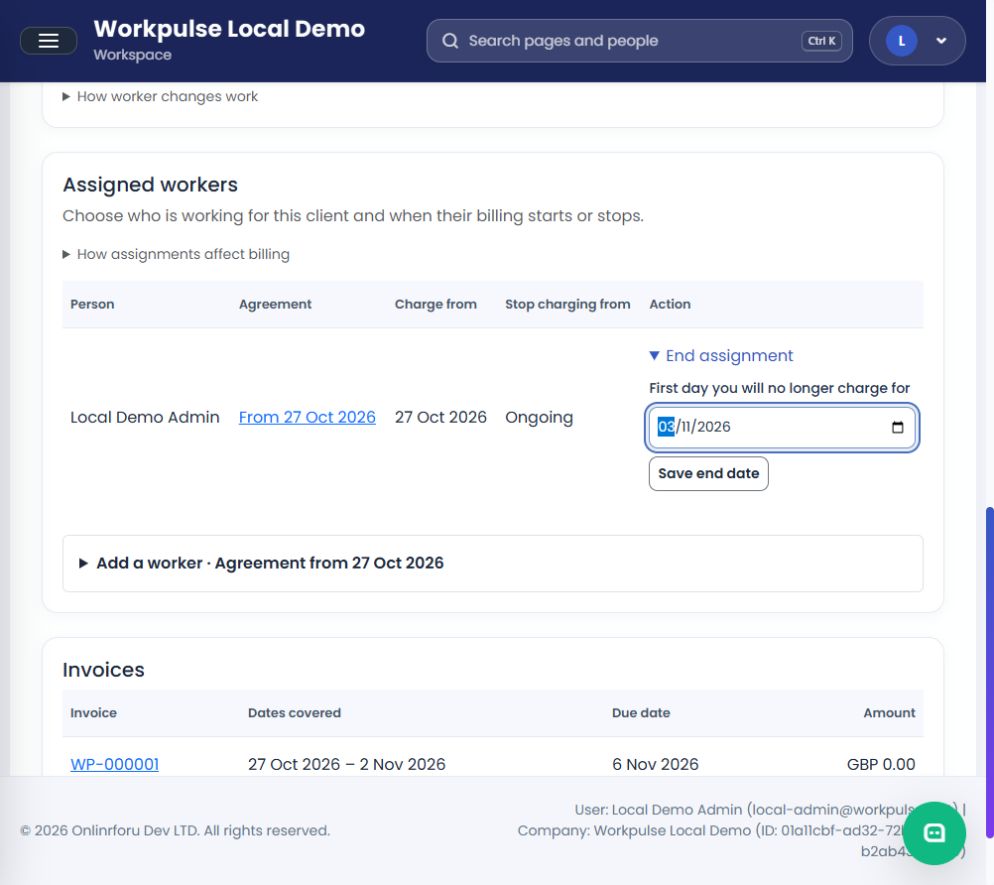
Example: the illustrated worker is charged from 27 October, is included in the free starter, and stops being charged from 3 November. Their team membership remains.
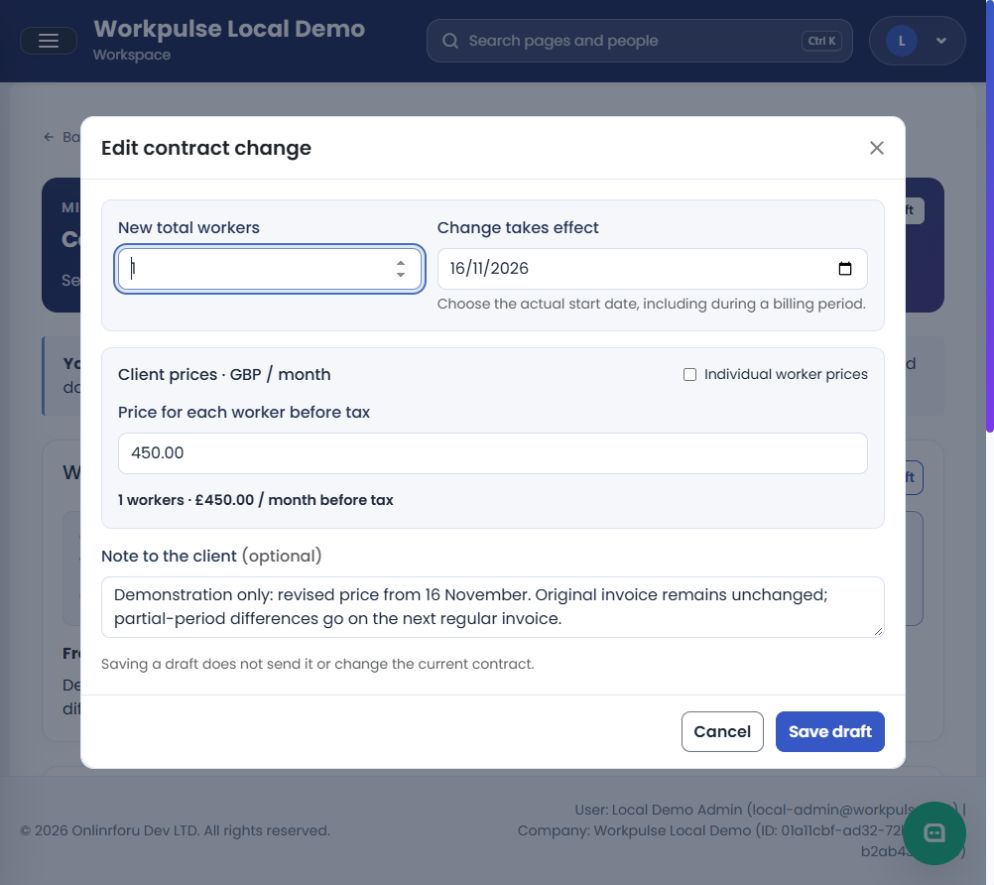
Under Workers and requests, the client can request more or fewer workers and suggest a date. The staffing company selects Prepare contract change on that request. In the pricing popup, set the proposed number, each worker's client price, an available start date and a short explanation. Keep existing price rows when their workers continue.
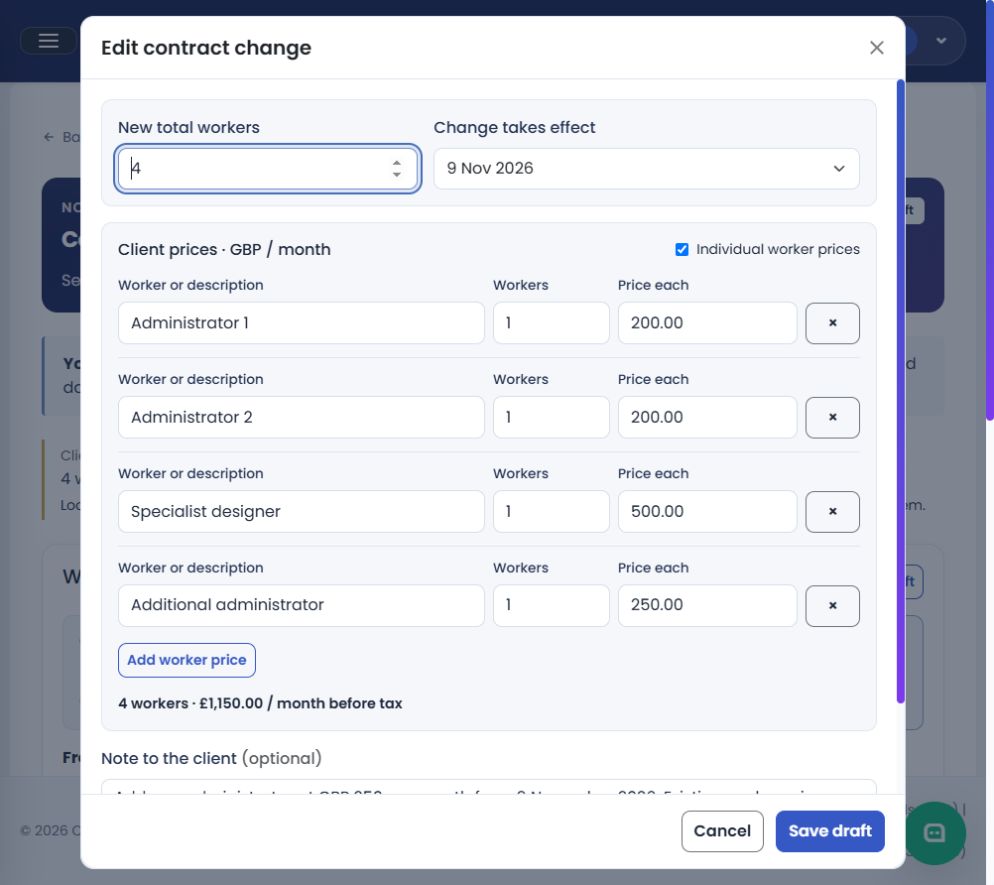
Select Save draft, review the current and proposed prices, then Send for client approval. The page shows whether the proposal email was sent. Its link takes the client to their billing account to review the change. Drafts are visible only to authorised staffing staff; submitted prices cannot be edited. Withdraw a submitted proposal and prepare another if the offer changes.
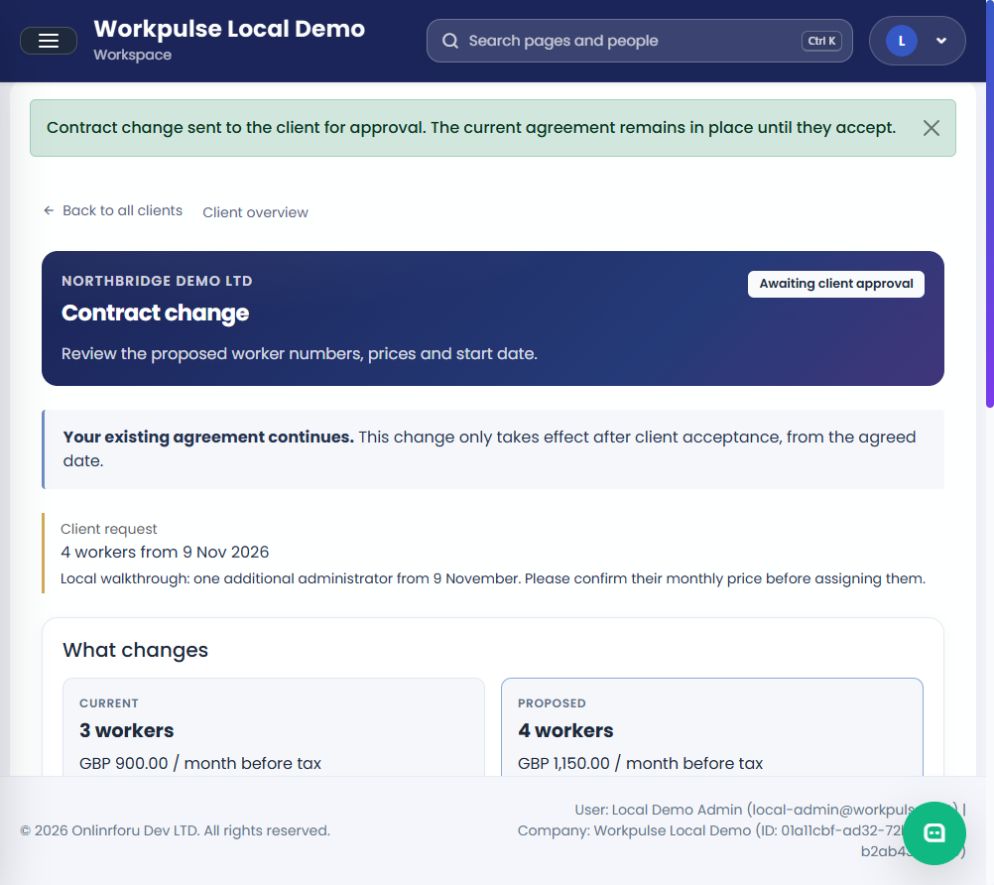
Example: Northbridge's existing three positions total GBP 900 per month. Adding one administrator at GBP 250 proposes four positions at GBP 1,150 from 9 November. The client sees both figures and the date before choosing.
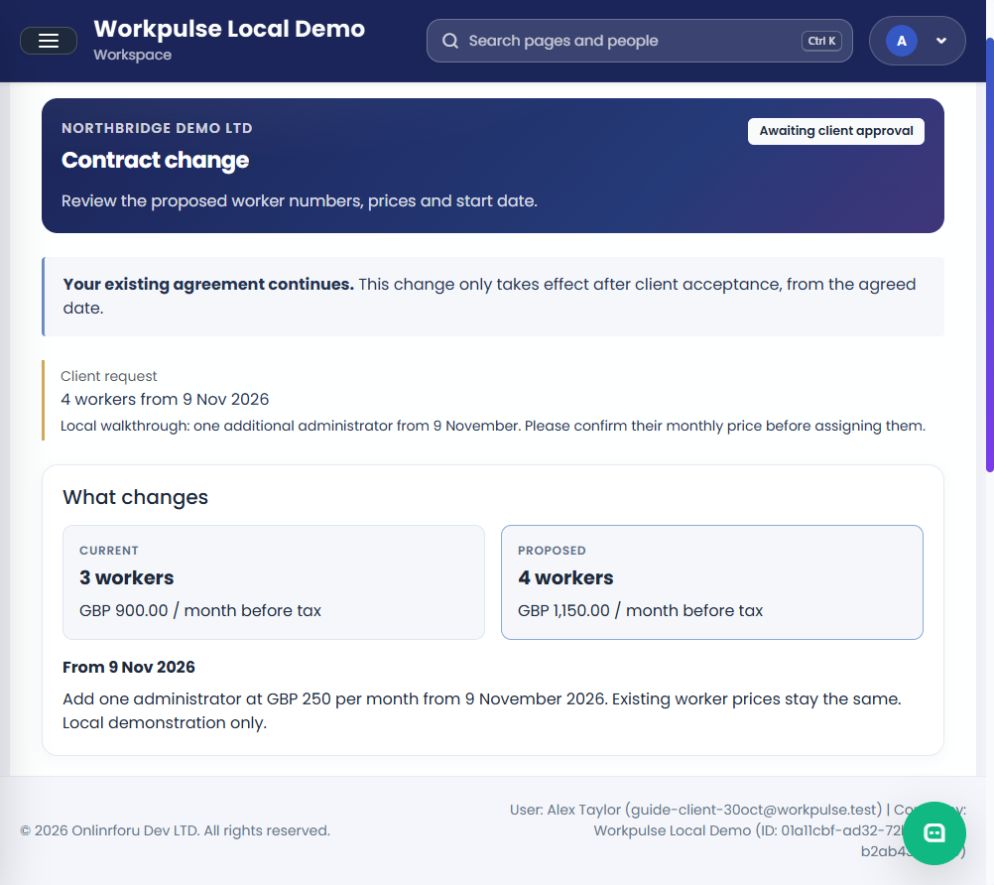
The client's main contact signs in, reviews the prices, ticks the confirmation and selects Accept contract change or Decline. The staffing author cannot accept on their behalf. Until acceptance, the existing agreement continues. A declined or withdrawn proposal changes no prices.
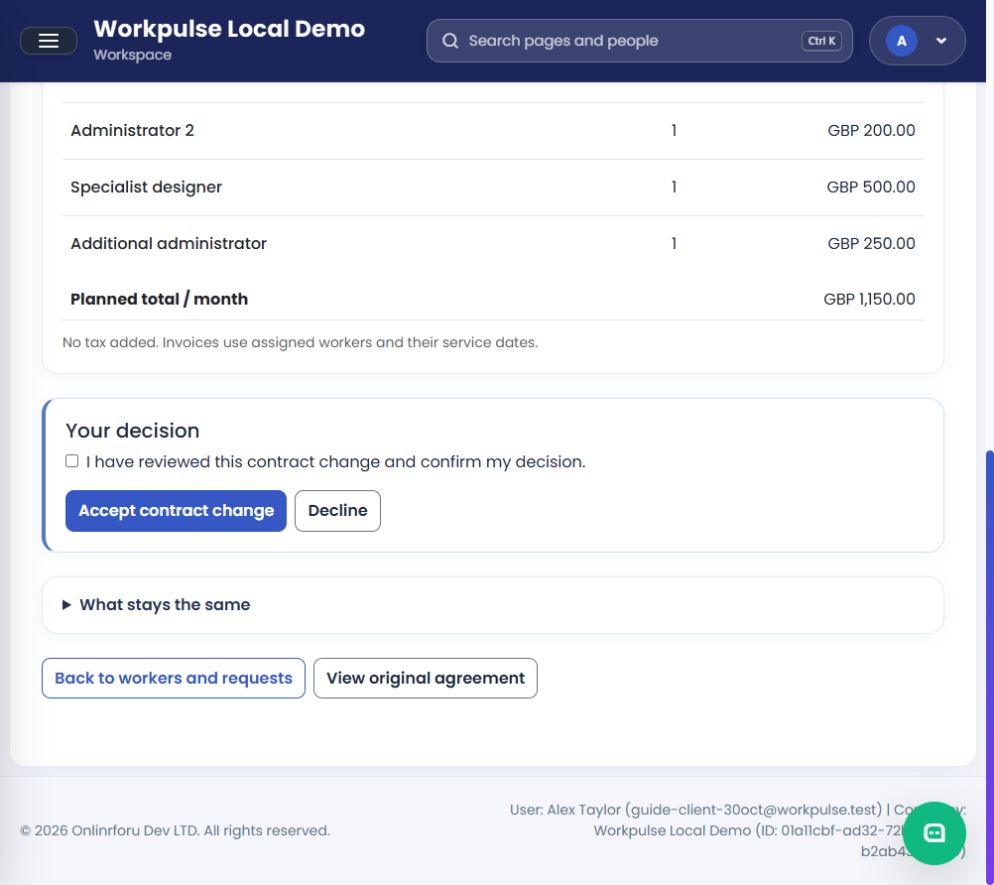
Expected: acceptance records the change and its agreed date. Per-worker changes start at the beginning of a billing period that has not been invoiced. Hourly arrangements can change on an actual date during a regular billing period, after the starter; earlier time retains its old price. The original contract, calendar and issued invoices remain unchanged; there is no second starter or setup fee. One proposal can be open at a time, and a scheduled accepted change must take effect before another is prepared.
Changing a price without changing the number: a staffing administrator can select Change worker prices from the client overview. Use the same proposal, review and client-approval process. Unsent drafts remain private even if withdrawn.
Older daily-priced example: the Mid-month Demo Ltd pictures below show a daily-priced contract from before per-worker contracts charged whole periods. They explain existing records only.
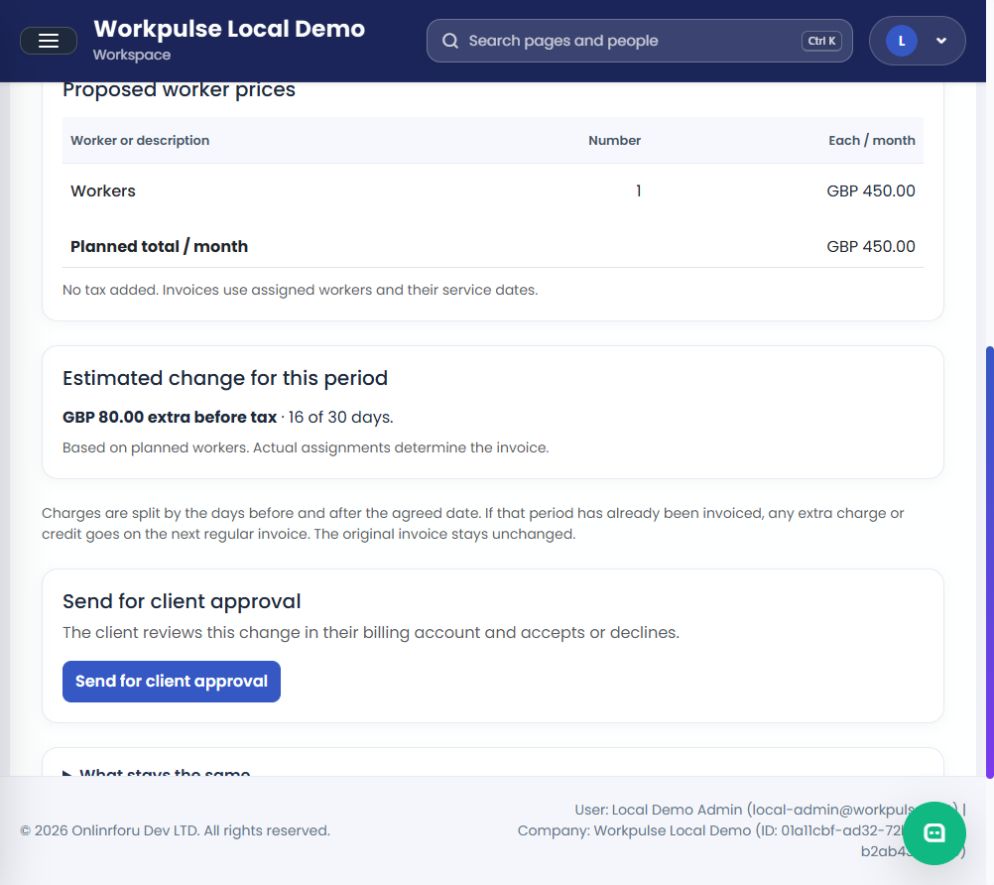
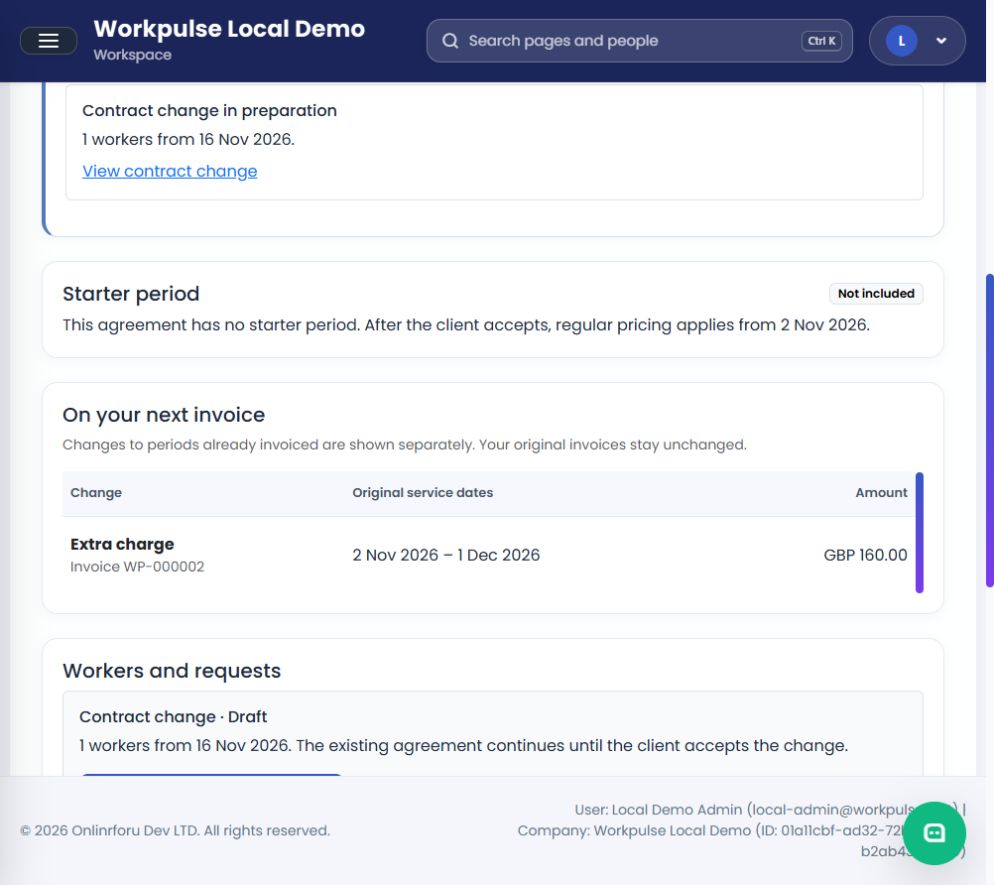
If the period is already invoiced: for hourly and older daily-priced contracts, the system records the difference separately and puts it on the next regular invoice. The overview shows On your next invoice. Credit reduces later invoices without making them negative; any unused amount stays recorded. It does not automatically refund a card.
Agreed early stop or refund: the full billing period stays charged unless you agree otherwise. Open the invoice, choose Agree a credit, enter the amount and reason, then review and confirm. Choose whether it comes off the next invoice or you settle it yourself. No money is sent. To stop the whole contract, also use End billing.
Worker-start example: at the still-agreed GBP 300 monthly price, the demo's worker starts on 16 November. Their first 16 of 30 days cost GBP 160. Because the period's invoice already exists, that amount is carried forward; it is not added to the original document.
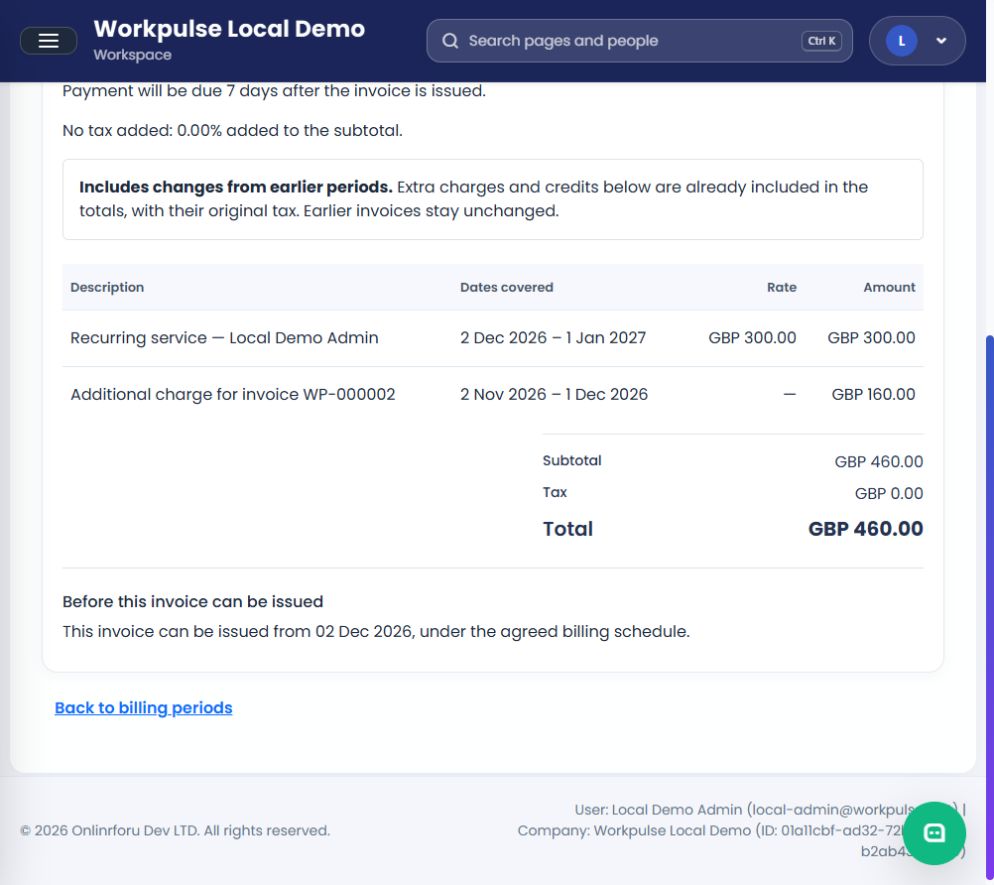
The next period's preview shows GBP 300 regular service + GBP 160 earlier-period adjustment = GBP 460. Reviewing it does not consume the adjustment. Issuing the invoice records it once; reopening or retrying does not add it again. The illustration is a future preview, so it cannot be issued before 2 December.
Hourly changes use the approved worked time and paid breaks on each side of the agreed date. To correct an earlier service date, open Correct billing dates from the client overview or agreement. Choose Add a missed worker, End a billed place, or, for per-worker pricing, Replace a worker. Enter the actual date and a reason, then select Preview correction. Review the amounts, tick the confirmation and select Confirm correction. This requires Manage Client Billing.
This review supports both regular and starter invoices. A separate credit or extra charge goes onto the next regular invoice, using the agreed daily or whole-period policy. Issued invoices retain their original amounts. A replacement at the same price keeps one billed place. A worker who has already left can still be added for the dates they worked. To remove a place billed by mistake, end it on its own start date. Any balance remaining when there is no later regular invoice stays recorded for final settlement.
For per-worker contracts, the client pays for the agreed number of workers for each whole billing period. Assigning, moving or removing people does not change the price, and a place can be empty. If more people are assigned than agreed, staff see a warning and nothing extra is charged. To change the number, prepare a contract change; it starts at a later billing period after the client accepts. Contracts accepted before this rule keep their earlier rules until the client accepts a contract change.
Move or replace a worker
- Move or remove the worker in Teams. Their wage is managed in Payroll.
- On the previous client’s overview, open Assigned workers. For a per-worker place, choose Record departure and enter the first day off the team. For hourly billing, use End assignment with that date, or Correct billing dates for a late correction.
- Add the worker to the new client’s billing from the agreed date. To fill the previous client’s vacant place, add the new person to that team and assign them; on an older contract, select Replace worker on the open place. A wrong departure date can be changed with Change departure date and a reason. The price does not change.
When someone leaves the staffing company, use Remove company access in Users. For a monthly salary, set the final working date in Payroll → Employees & wages first. Recorded work can still be reviewed for final payroll.
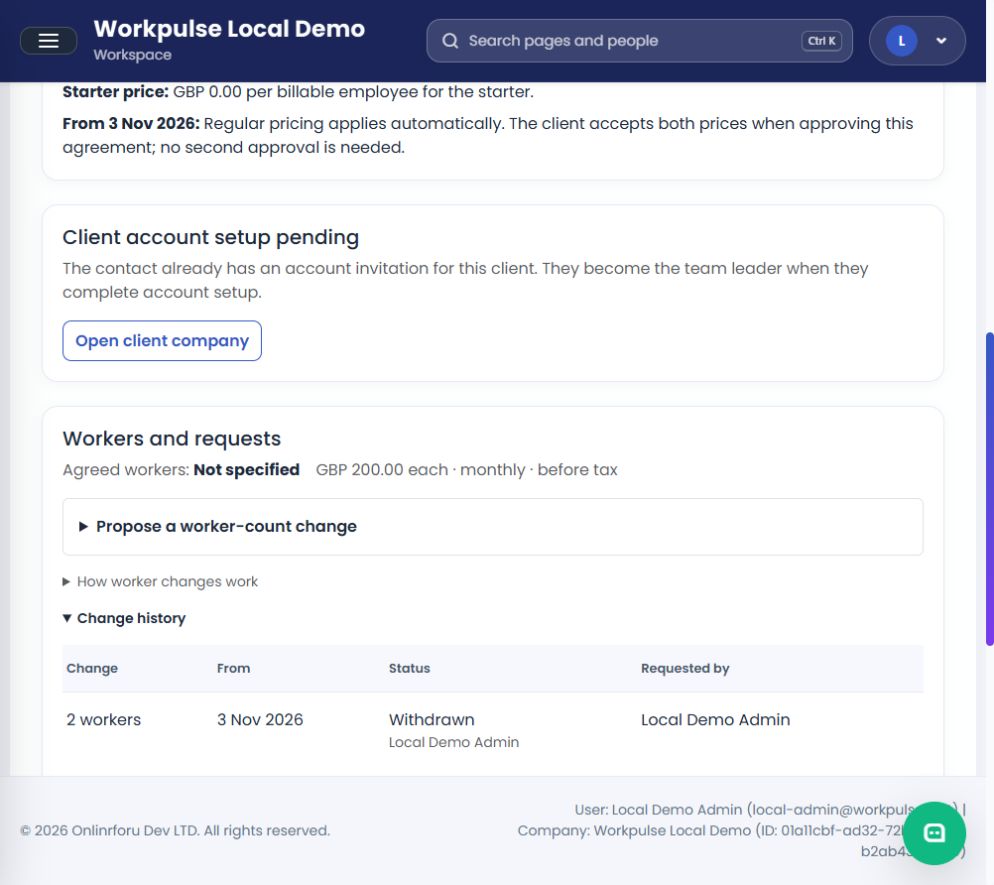
Example: a request for two workers from 3 November initially needs client approval. Withdrawing it leaves the actual assignments and issued invoice intact, while retaining its history.
Contract-change proposals support ongoing per-worker and per-paid-hour arrangements. Fixed client fees and changes to currency, tax, frequency or starter conditions require a separately agreed arrangement. Whole-contract ending dates still use the offered billing boundaries. Any balance left when service ends remains recorded for final settlement; refunds are a separate step. Accepting a change does not itself charge a card.
13. Review and issue invoices
Select Review billing periods. Each period shows its dates and either an available review action, a future availability date, a pause, or an approval still needed.
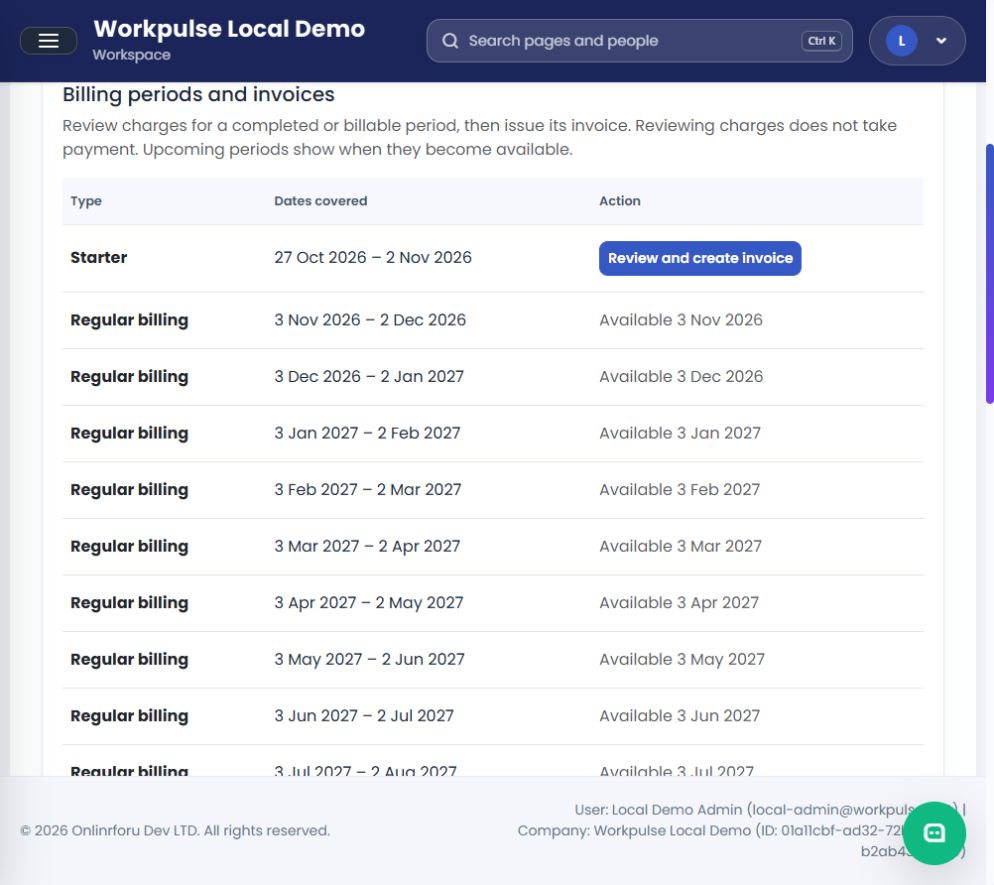
Select Review and create invoice for the relevant period. Check the supplier, client, service dates, worker lines, tax and total. Opening the preview creates no invoice and takes no payment.
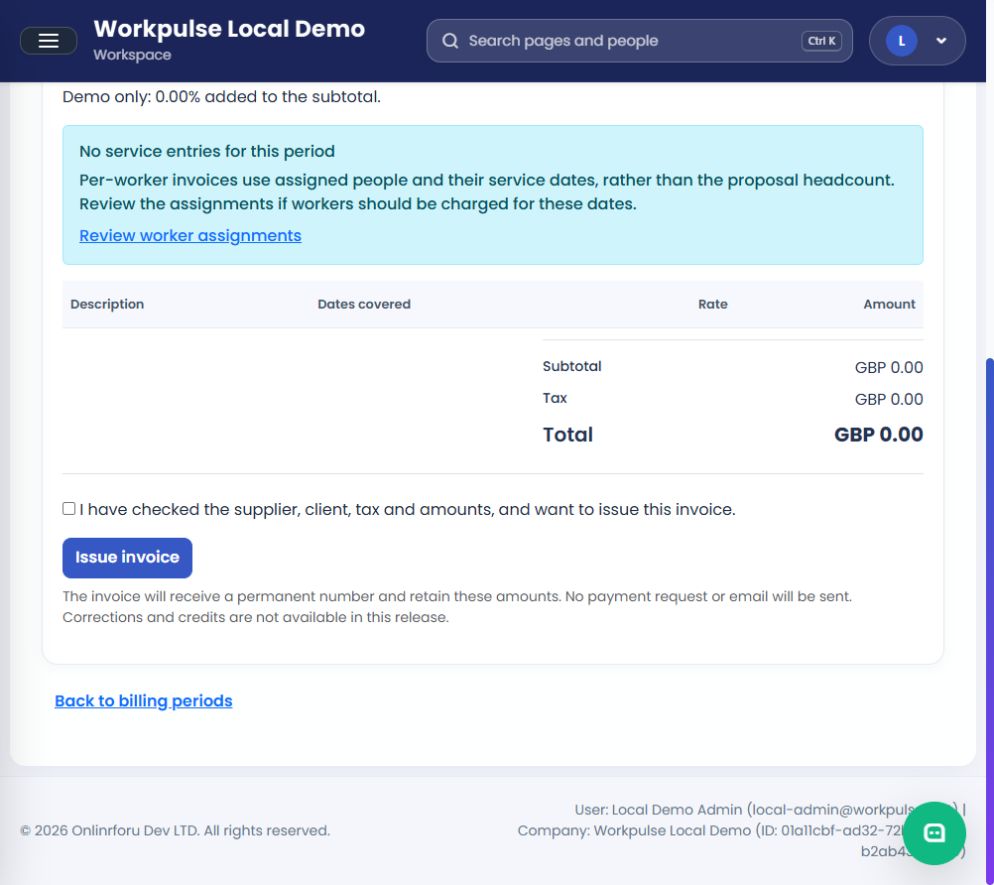
For per-worker billing, the preview shows the agreed number of workers. Older contracts still use assigned people and service dates; if none are assigned, the page warns you and asks for a separate confirmation. An agreed free starter or an approved quiet hourly period can correctly have a zero total.
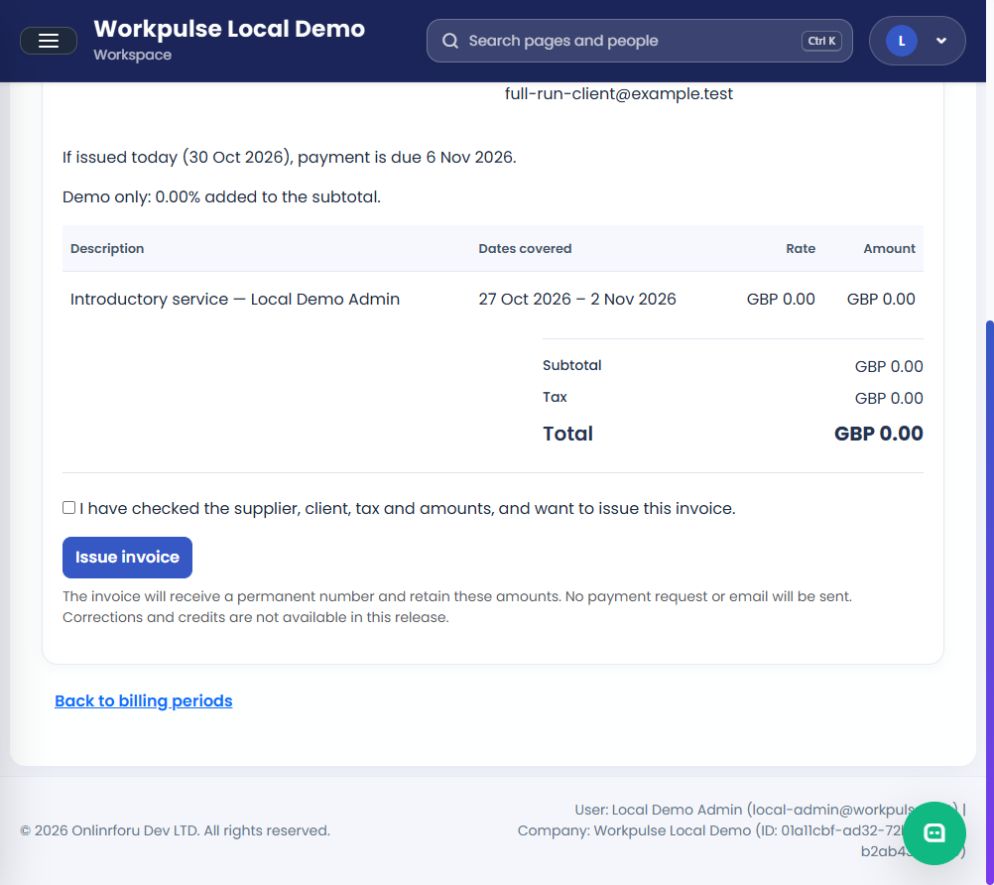
Only when ready, tick the confirmation and select Issue invoice. The invoice receives a permanent number and retains those amounts. Open it from Invoices to view or download its PDF.
Expected: what happens next follows your Payments and reminders settings. Normally the invoice is emailed straight away with its PDF and a private link where the client can view and pay it. If the client saved a card, it is charged. The invoice page shows whether it was emailed and paid. Do not issue a demo invoice unless you intend to keep that numbered test record.
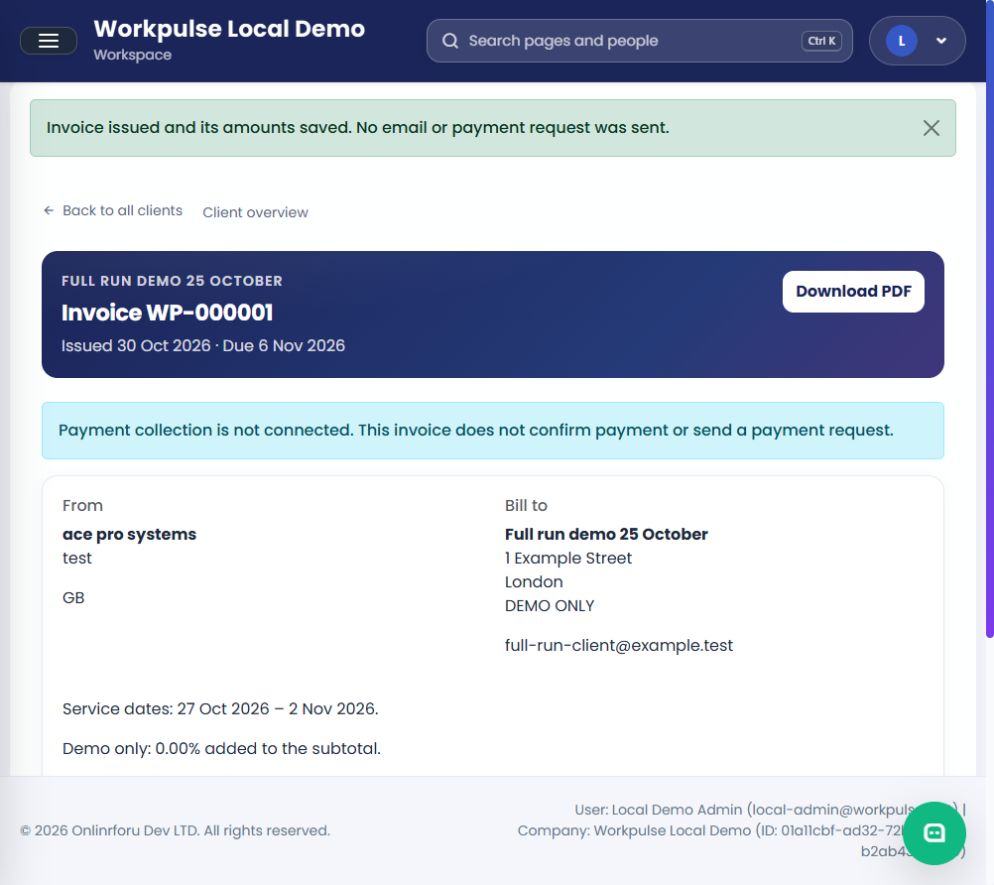
Example: WP-000001 is a free-starter invoice, total GBP 0.00, for 27 October–2 November. The number and document do not mean a card was charged.
14. Pause and resume billing
These controls are for staffing-company users with Manage Client Billing permission. Clients cannot pause, resume or withdraw a billing pause themselves.
Open Pause or end billing → Pause or resume, then expand Pause billing. Choose an offered date, confirm and select Save pause date. Dates follow the end of the starter or a billing period; issued periods are protected.
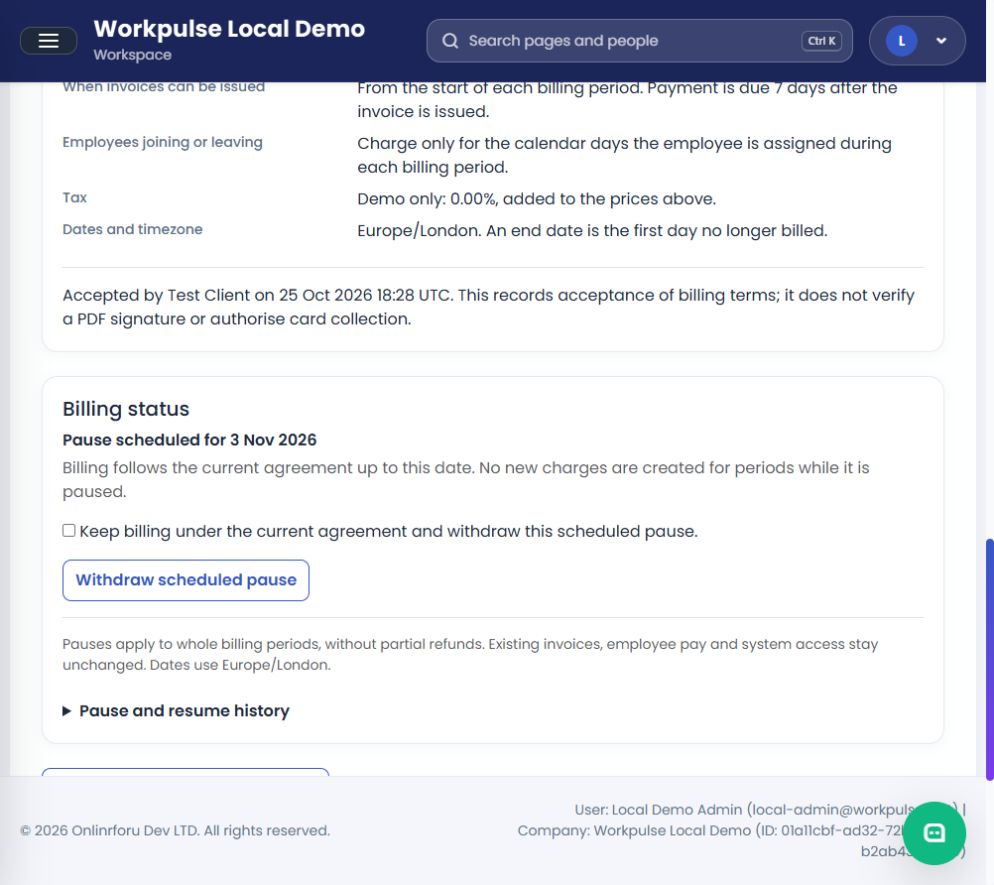
Expected: the page shows Pause scheduled. Before it starts, Withdraw scheduled pause keeps the existing schedule. Once paused, choose an offered Resume billing from date and select Save resume date. Resuming keeps the original prices and calendar, with no new starter or setup fee. A saved resume date cannot be changed.
15. End the billing arrangement
A billing manager opens End billing, chooses the First day no longer billed, confirms and selects Confirm billing end date. The offered dates avoid cutting through issued service or preceding planned worker starts.
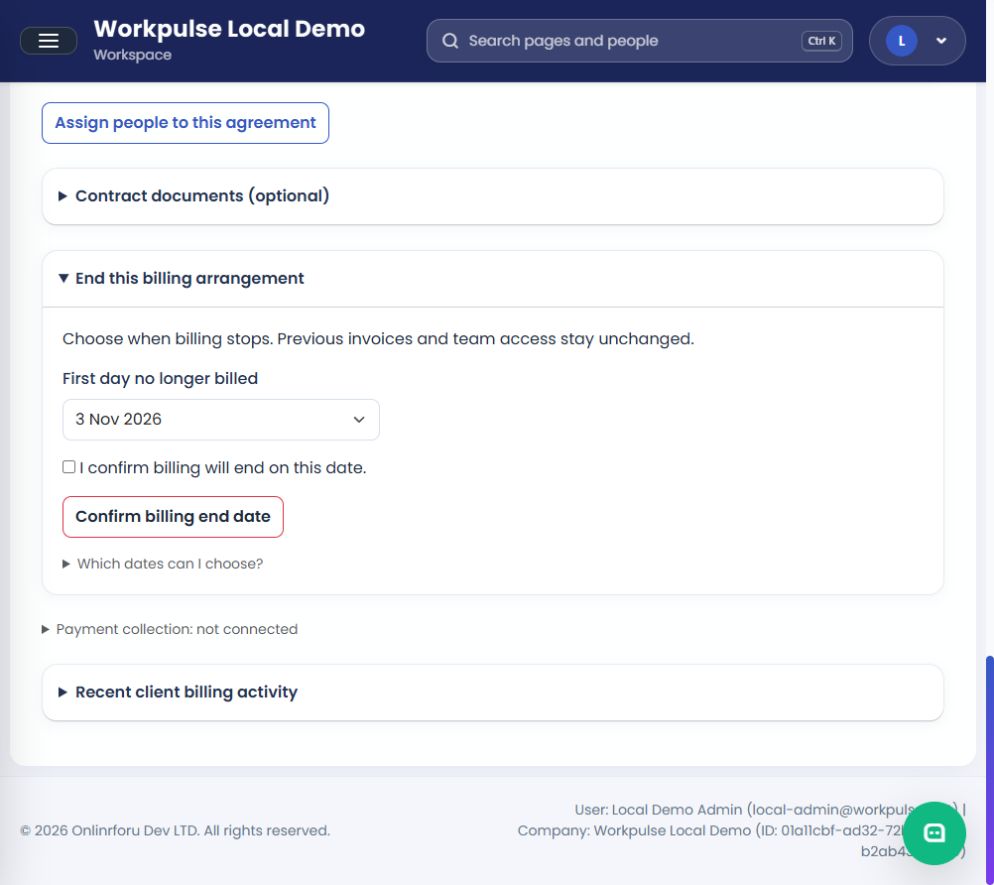
A client leader instead uses Request contract cancellation. The existing agreement and billing continue until the staffing company approves an end date.
Expected: future billing stops at the agreed boundary. The team, account access and issued invoices remain. Ending does not settle outstanding invoices or create partial refunds.
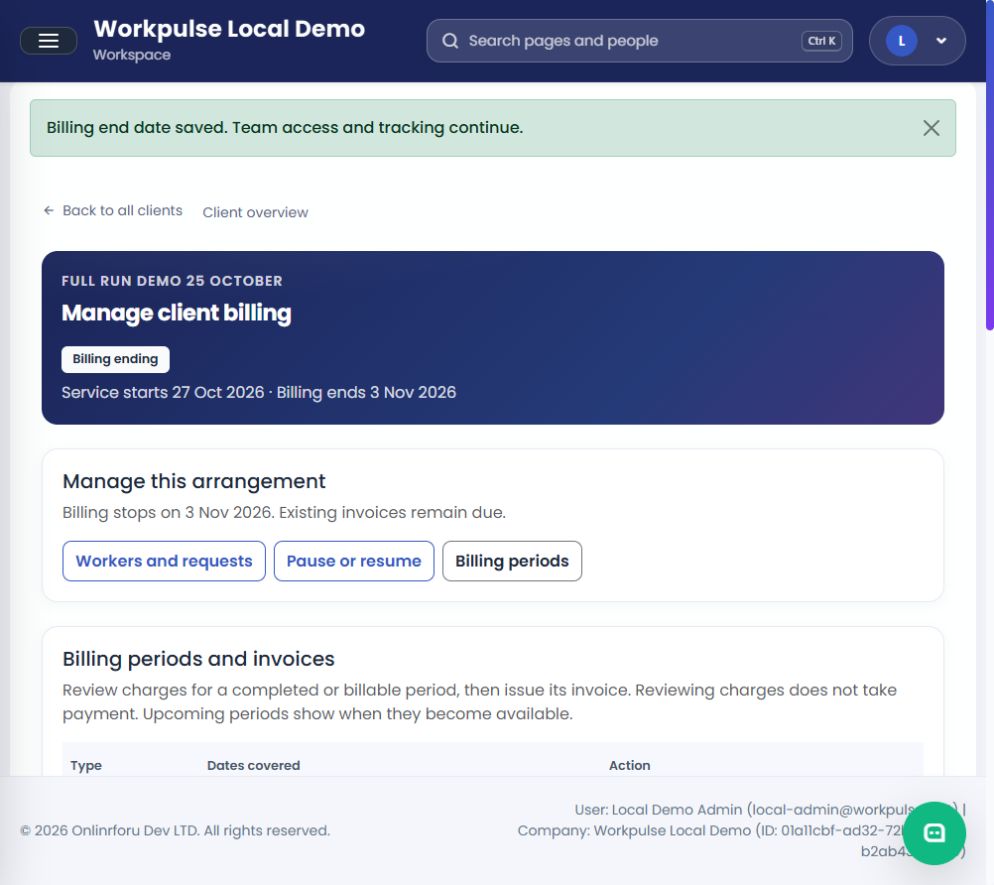
Example: billing ends from 3 November 2026, so the last covered day is 2 November. The page shows Billing ending and retains the issued starter invoice; later billing periods are no longer offered. The team and history remain.
16. Check the payment connection separately
Payment connections belongs to the staffing company, not each hiring client. It shows the stages for the staffing company's Stripe setup and any information Stripe still needs. Complete the secure Stripe steps and use Check Stripe status afterward.
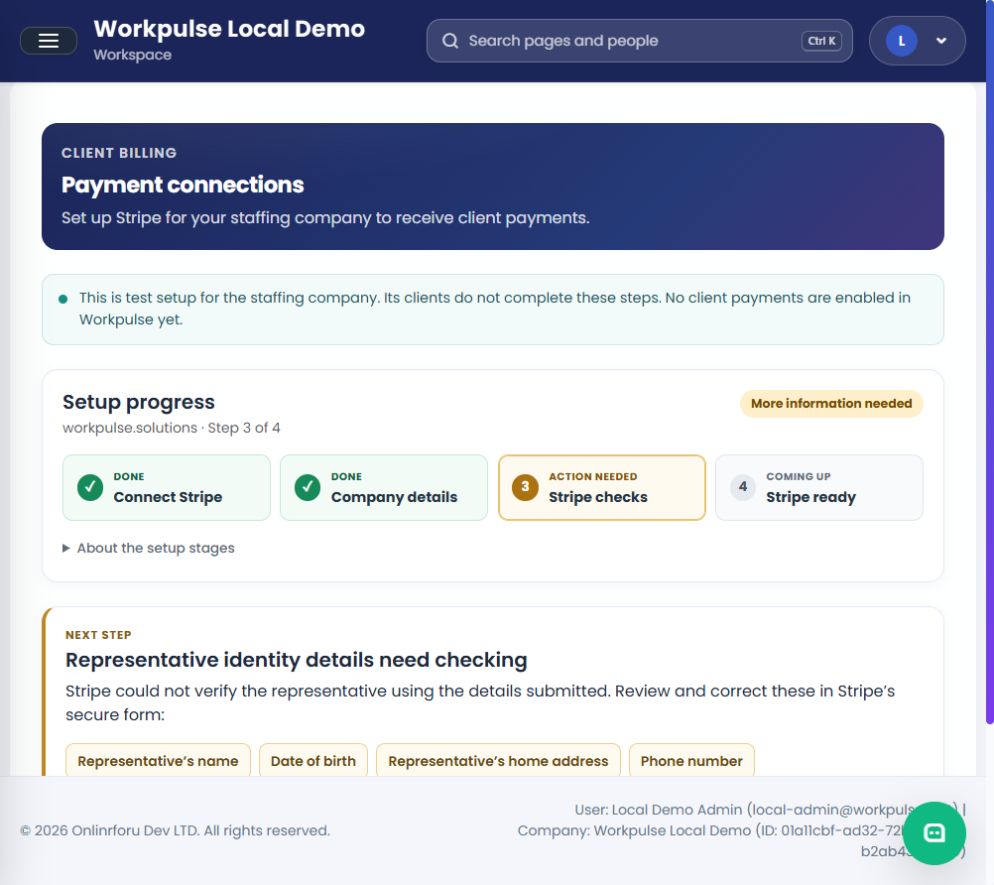
Payments go to your own Stripe: Stripe may ask for business or identity information before enabling the staffing company's account. The screen shows the next action; the actual requirements vary. Once it is ready, clients can pay invoices by card and the money goes straight to your Stripe account. Refunds are made in your Stripe dashboard. Workpulse's own subscription billing is separate.
17. Set your payment and reminder rules
From Client companies, select Payments and reminders. These are your company's own rules; Workpulse does not decide them for you.
- Create invoices automatically: each billing period's invoice is created on its invoice date, from the day you switch this on. If one cannot be created (for example hourly work not approved yet, or no workers assigned on an older contract), billing staff get an email saying what to fix.
- Email each invoice: the client gets the PDF and a private link to view and pay it, without signing in.
- Card payments and saved cards: the client can pay by card on Stripe's secure page and choose to save the card. A saved card is then charged automatically, on the invoice date or the due date as you choose. The client can remove it at any time.
- If a card payment fails: the client is emailed straight away with a pay link and the date to pay by. You choose how many days they get, how often the saved card is tried again, and whether billing staff are told.
- Late payment: you choose when reminders start, how often they are sent, the most to send, and when billing staff are told an invoice is still unpaid. Add your own payment terms, such as interest or pausing service; they are shown on invoice emails, reminders and the client's invoice page. Workpulse does not add fees or pause service by itself.
- Who gets staff emails: new enquiries, failed payments, overdue invoices and invoices needing attention. Left empty, everyone who can manage client billing gets them.
Paid another way: on the invoice page, open Mark as paid, choose how and when it was paid, and confirm. The client is emailed a receipt. Email invoice again resends it.
Was this article helpful?