
AI work reports: buy seats, choose workers and read reports
Add AI reporting seats to your subscription, choose which workers get reports, and understand each part of a daily or weekly report.
AI work reports give you a short daily and weekly summary of what each chosen worker did: the main work, progress, anything that needs checking and ideas to save time. This guide shows how to buy AI seats, choose the workers and read the reports.
Before starting: buying seats needs the Manage Subscription permission and a saved company card, because seats are added to your monthly subscription. The illustrations use a fictional company, Northbridge Demo Ltd, with fictional workers and figures. Select an illustration to open it full size.
1. Choose how many AI seats you need
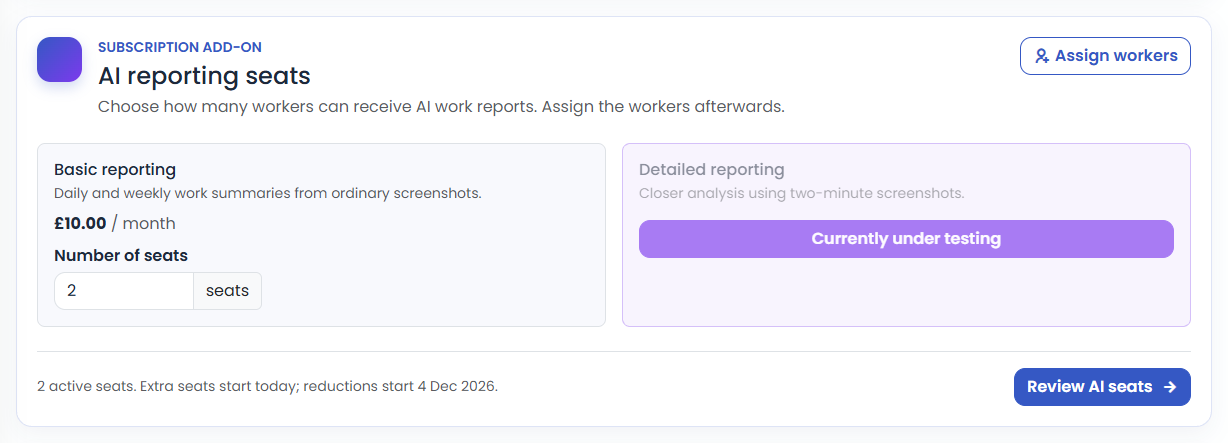
Each seat lets one worker receive AI work reports. Open Subscription and find AI reporting seats. Enter the number of Basic reporting seats you want and select Review AI seats.
- Basic reporting writes daily and weekly summaries from the screenshots WorkPulse already takes.
- Detailed reporting is currently under testing, so it cannot be bought yet.
2. Check the price and confirm
Before anything is charged you see the new monthly total and the amount due today. Seats added part-way through a billing month cost only the rest of that month; the full monthly amount starts at your next renewal. Select Pay and start today to confirm, or Change selection to go back.
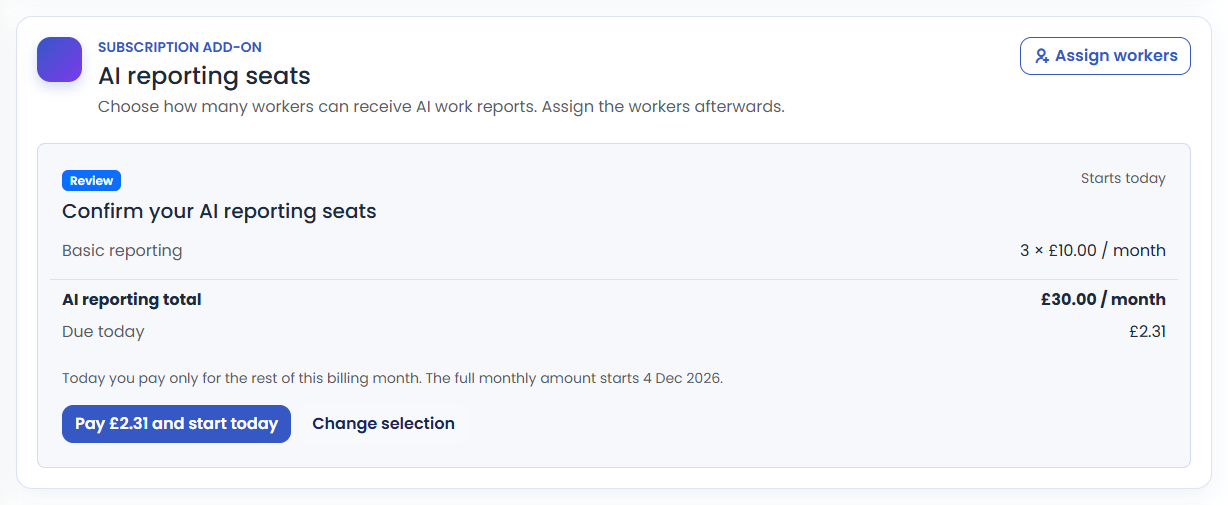
Expected: the seats are added to your existing subscription and appear on the same monthly invoice as your plan.
- Bank approval: if your bank asks you to approve the payment, you are taken to a secure payment page. The seats start once the payment is approved.
- Declined card: no seats are added and nothing is owed. Update the company card and try again.
- Fewer seats: lowering the number takes effect at your next renewal. The current month is not refunded, and workers keep their reports until then.
- Price changes: if the price of your seats goes up, you are emailed at least 30 days before, and the Subscription page shows the new price and when it starts. You can reduce your seats or cancel before then.
3. Choose which workers get reports
Open AI work reports, then Manage AI seats (or select Assign workers on the Subscription page). Choose a worker and the seat type, then select Assign. Reporting starts straight away for that worker.
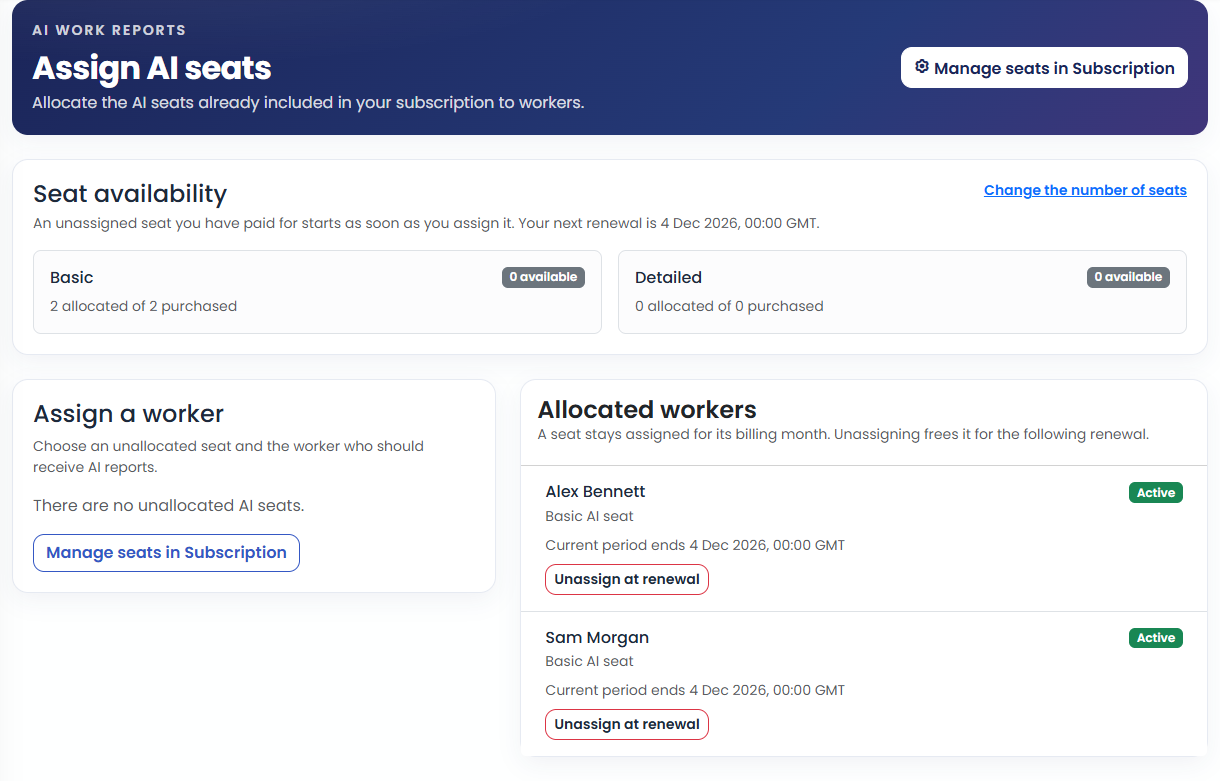
- A seat stays with its worker for the billing month. Unassign at renewal frees the seat from your next renewal, so you can give it to someone else then.
- Free seats: if your agreement with WorkPulse includes free AI seats, they are listed on this page and are assigned in the same way. Free seats are never charged.
4. Find the reports
Open AI work reports. Each line shows the worker, the period and whether the report is daily or weekly. A daily report is usually ready the following morning; a weekly report after the week ends.
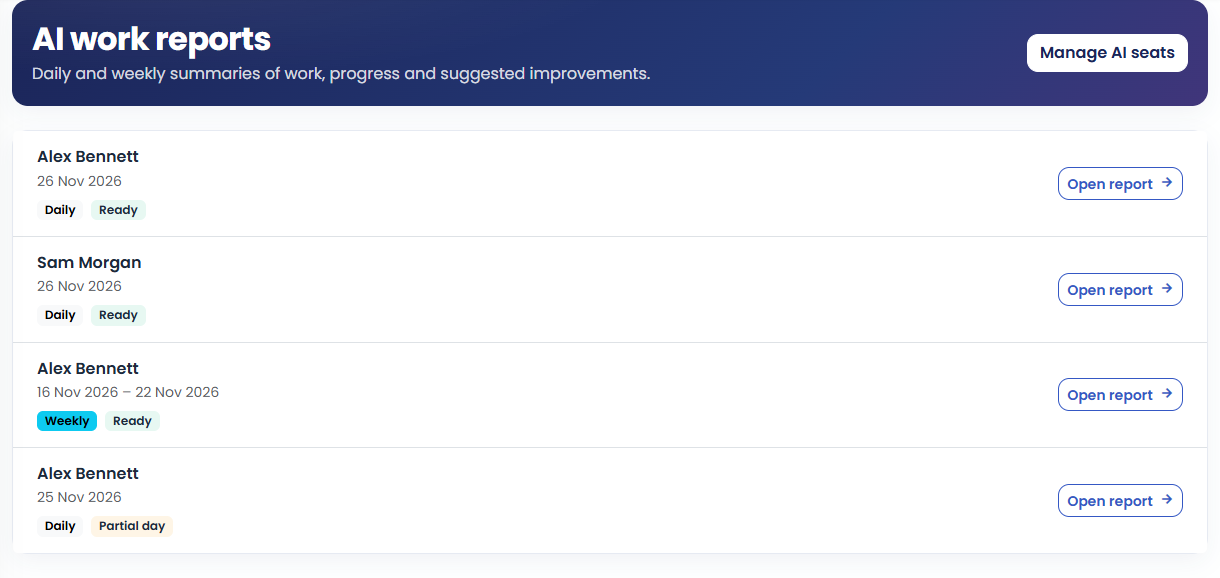
Partial day means some activity was missing, for example because the computer was offline. Who can see reports: people with the View All Captures permission see every worker's reports; team leaders see reports for their own team.
5. Read a report
Each report starts with the worker, the date and a count of what is inside, then the parts that need action.
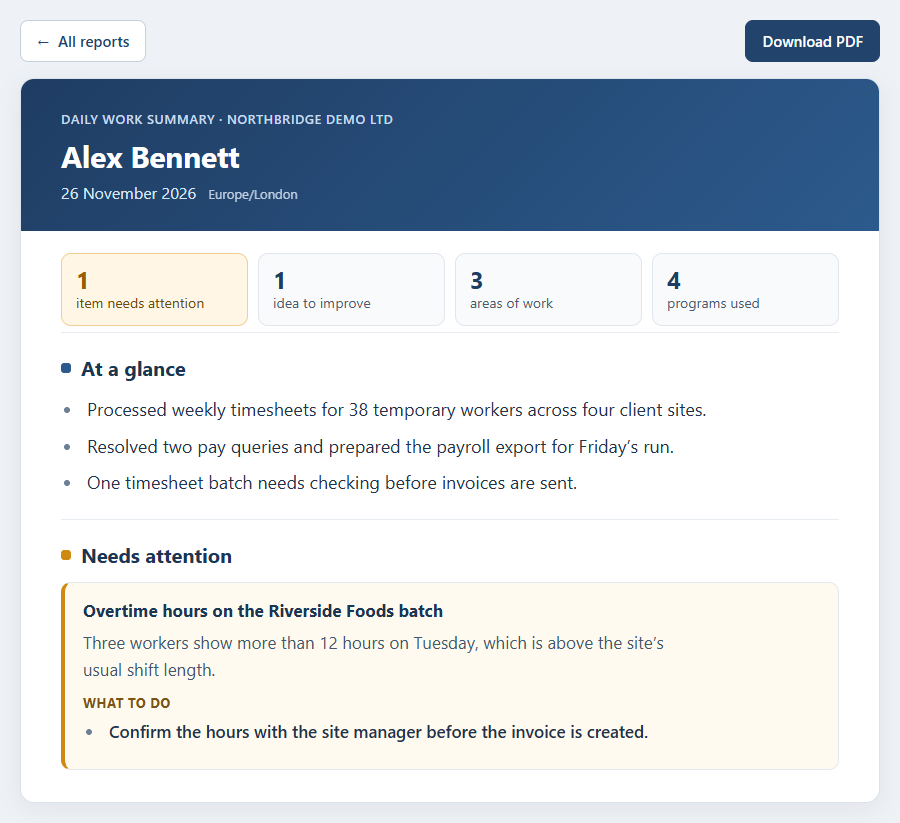
- At a glance: the day in two or three lines.
- Needs attention: something worth checking, why, and what to do.
- Progress: work that moved forward.
- Ways to improve: practical ideas that could save time.
- What was worked on: the main areas of work.
- Programs used and Earlier checks (items raised in earlier reports).
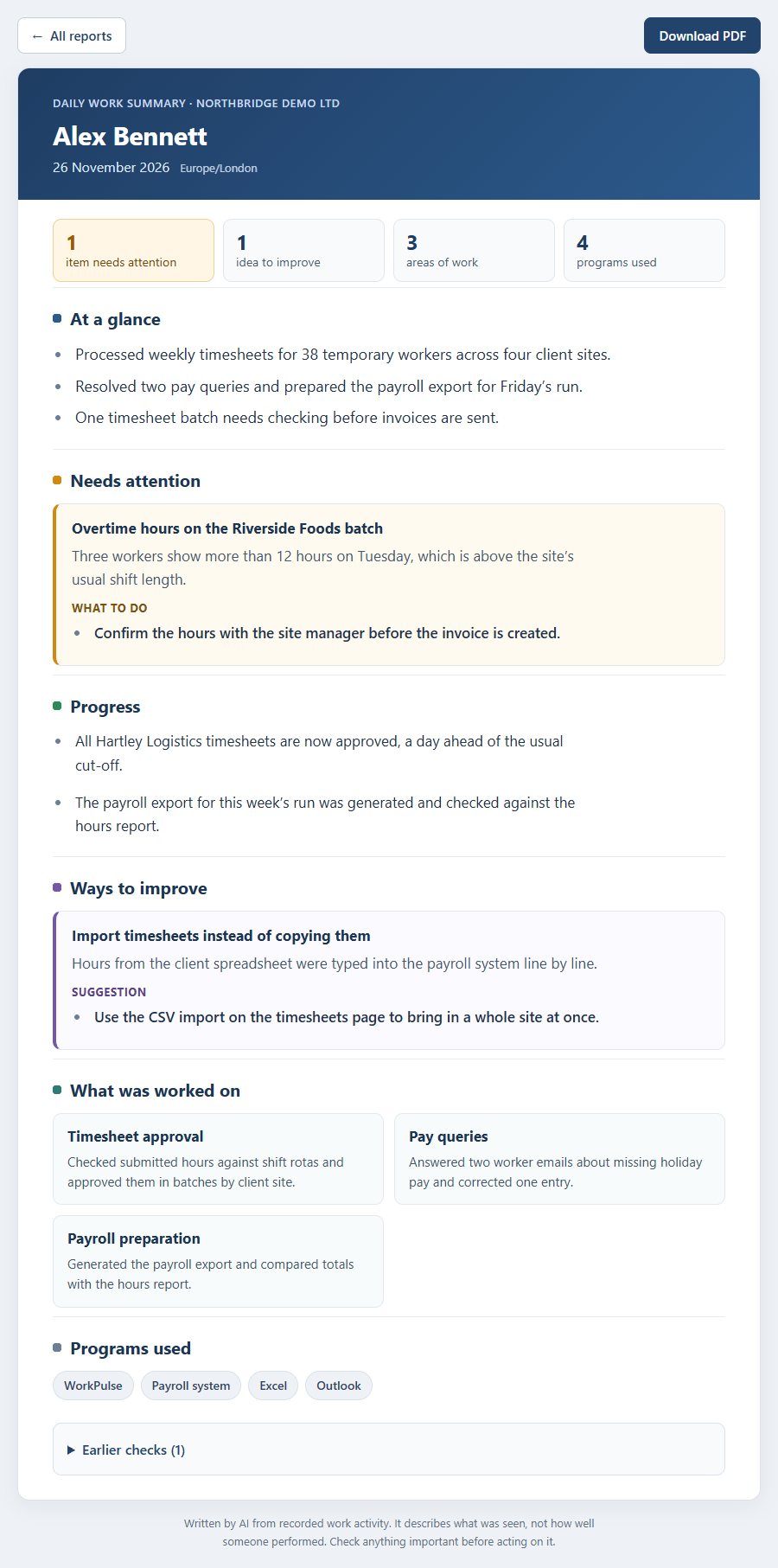
Important: reports are written by AI from recorded work activity. They describe what was seen, not how well someone performed. Check anything important before acting on it.
6. Download or share a PDF
Select Download PDF at the top of a report. The PDF has the same summary, followed by an appendix of supporting notes and sample screenshots for each section.
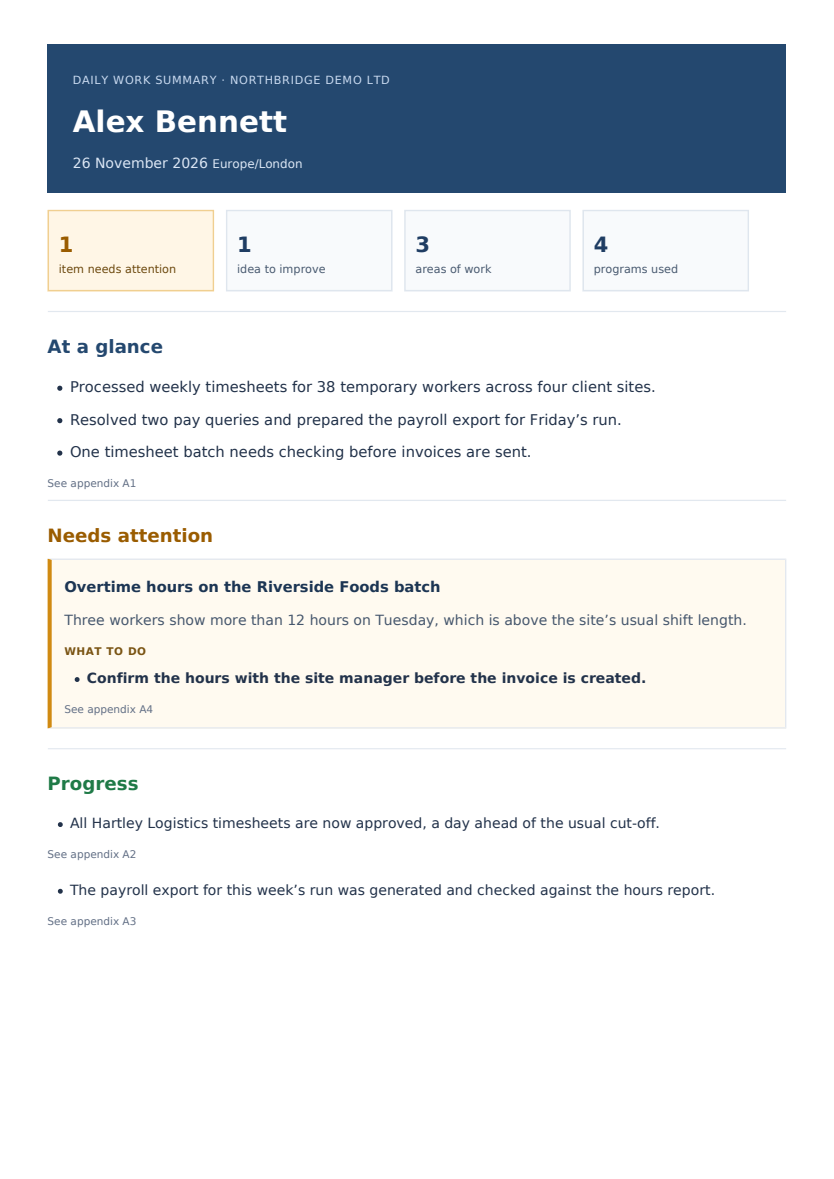
Reports also work on a phone. The PDF can contain screenshots of the worker's screen, so share it only with people who are allowed to see that information.
Was this article helpful?